HOME
  • Home
  • About
  • Contact
  • Contribute
  • Subscribe
  • Twitter
  • Flickr
 

Tutorials

4

Master Realistic Eye Editing in Photoshop

by Christopher O’Donnell


Share

Whether your model has that early-morning blur to their eyes or your shooting conditions were less than optimal, almost every portrait could benefit from bit of Photoshop eye assistance. By following these steps, you can achieve clear, vibrant, and piercing eyes all within fifteen minutes of post process work.

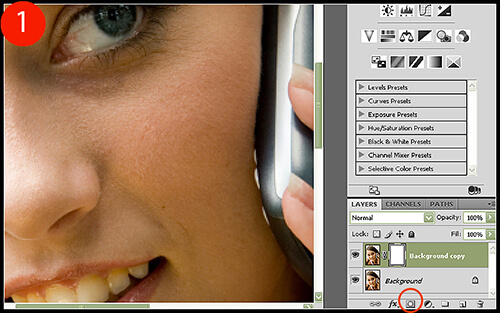
1. Click Layers > Duplicate Layer, then apply a layer mask by clicking on the icon on your layers palette toolbar (Figure 1). Select the Clone Stamp tool, and with a steady hand, clone out any unwanted or distracting reflections (unless you think they add to the portrait in some way). You may need to increase the brush hardness of your clone stamp (right-clicking on the photo will bring up the appropriate menu) when working along sharper edges, such as the pupil or the eyelids. It would also be good to clone out any redness in the whites of the eyes as well.
Eye Editing in Photoshop

The layer mask is useful in case you over-do it with your cloning: for example, if you clone with too soft of a brush on the whites of the eyes and need to mask in the eyelids a bit.

2. When finished, if you did not use your layer mask, just delete it by right-clicking the mask and selecting Delete Layer Mask.

If you did use it, then you will need to merge down a layer so that our new effects will be applied to a layer with 100% uniform transparency. To do this, click on your base layer and duplicate it. The duplicate layer should appear right beneath the top layer (the one you just masked). Now right-click on the top layer and select Merge Down to combine both layers into one.

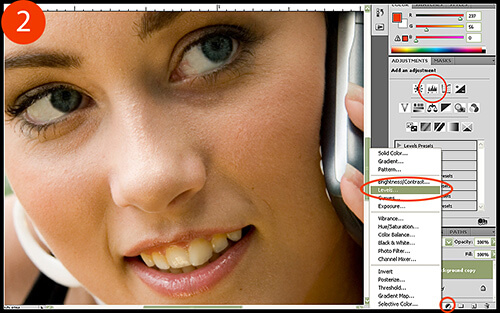
3. Let’s create a new level adjustment layer by clicking on the Levels icon in your Adjustment palette (Figure 2). Alternatively, you can select a Level Adjustment layer from the layers palette toolbar.
Eye Editing in Photoshop

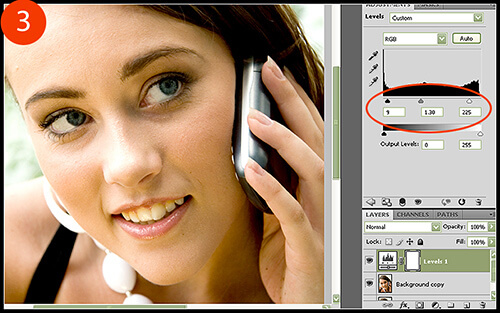
In the Adjustment palette, slide your levels around to lighten the white colors and darken the darker ones. Usually, you will only want to increase the black point triangle by very little since the outlines of the eyelids as well as the pupils are already very dark. However, the white point triangle should be adjusted rather liberally, and the midtone point slider pushed slightly whiter by sliding it to the left. For this example, the black point was reset to 9, midpoint reset to 1.30, and the white point to 225 (Figure 3).
Eye Editing in Photoshop

Do not care about what this adjustment does to the entire photo, just focus on the eyes. We will be masking out the level effect on the entire image shortly.

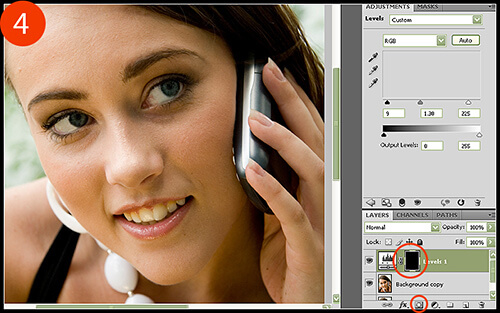
4. Click on the layer mask for the level adjustment layer that was automatically added and delete it by right-clicking and selecting Delete Layer Mask. You can also delete it quickly by clicking on the layer mask and drag-and-dropping it into the trash can located on your layers palette toolbar.

While holding down the ALT key, click on the Add Layer Mask button on your layers palette toolbar to add a black layer mask, which will hide the effect and allow us to only mask in what we choose (Figure 4).
Eye Editing in Photoshop

5. Click on your brush tool and set your opacity to 40% and the Master Diameter large enough to cover the entire eye. Make sure your hardness is set to 0% so that we have a very soft brush. In one circular motion, mask in the entire eye AND the entire area around the eye (about one brush width outwards from the eyelids) so that we eliminate some unwanted shadows. With the same brush, this time mask only the eye and eyelids, and finally with a smaller brush, mask just the inner eye area. Our goal is to create a gradual and flattering brightening effect around the eye that increases in intensity as you move towards to the pupil area. The finished result should look something similar to Figure 5.
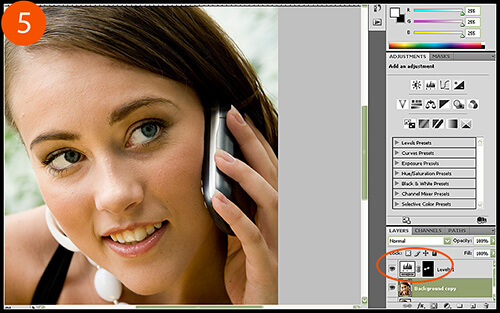
Eye Editing in Photoshop

6. To finish, we are going to liven up the eye color a bit. Click on your base layer (the first layer under the adjustment layer) and then select your Oval Marquee tool, making sure the “add to selection” option is selected from the top toolbar (Figure 6). Select the entire iris area, adding to the small circles you create so that the selection is accurate. When finished, switch to the “subtract from selection” option, located just to the right of the “add to selection” option, and subtract the dark pupil area.
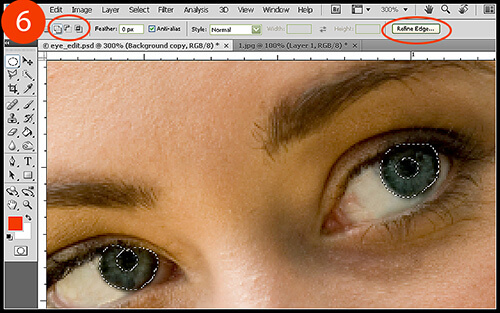
Eye Editing in Photoshop

7. To finish the selection, click on the Refine Edge button on your top toolbar and adjust the feathering so that the edges of your selection are gradual and soft. Click OK when finished (Figure 7).
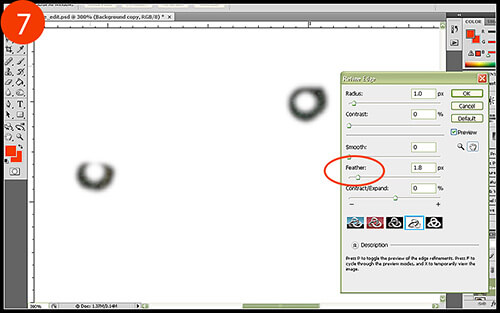
Eye Editing in Photoshop

8. Add a new Hue/Saturation adjustment layer, which should automatically provide you with a layer mask that only affects the area we just selected. Increase Saturation to about 50%, or whatever you consider to look natural and vibrant (Figure 8).
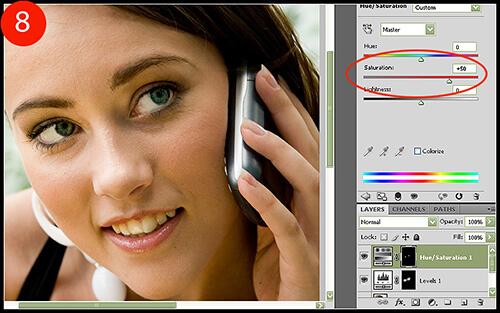
Eye Editing in Photoshop

As an optional edit, you can select your Burn tool and with a very soft brush set at an opacity of about 8%, burn the eyeliner and eyelid area slightly to add a smokey eyeshadow effect.

Eye editing is certainly not limited to just red-eye removal, and by using the tools provided in this tutorial, you can be ready for any imperfection the camera decides to throw your way!

Christopher O'Donnell Christopher O’Donnell is a professional landscape/portrait photographer who lives on the coast of Maine. When not scouting for new locations or spending time with
his “sons” (his two yellow labs), he is a freelance writer who authors photography course work.

Website: christopherodonnellphotography.com

Related Posts

If you found this article helpful, check out...

  • Authentic Grainy Photoshop Effect for Your Black and White Photos


  • How to Achieve Porcelain Skin with Natural Airbrushing in Photoshop


  • How to Apply a Custom Lens Vignette in Photoshop


  • Combining Images to Create an Antique Look in Photoshop


  • Combining Different Exposures in Photoshop


Subscribe to Our Feed Subscribe by Email Follow Us On Twitter Become a Fan

4 Comments

  • CJ Barker

    December 10th

    Very nice tutorial on editing eyes. In case you didn’t know, you do not have to delete the layer mask that comes with a new adjustment layer if you want a black mask — you simple hit Control>i and that inverts the white mask to a black mask. Just a little quicker. Thanks for taking the time to post this tutorial, and your other ones too, I think they are very helpful.

  • Jenna Molby

    December 10th

    Great tutorial! I always have trouble with editing eyes. Thanks!

  • Christopher O'Donnell

    December 11th

    Hi CJ,

    Thanks for letting me know about the CTRL + I trick; I knew you could just paint bucket the mask black, but I prefer to drag-and-drop it into the trash and put in a black mask, but your method is far easier.

  • West Midlands Wedding Photography

    March 9th

    Thank you. These look like nice effects. I will have to try it out as you make it look so easy. I love the one with the sunset.

Leave a Reply

Never Miss a Thing at TPA

Keep up-to-date with tips, resources, and inspiration for photographers novice to pro.
Subscribe to Our Feed Subscribe by Email Follow Us On Twitter Become a Fan

Search

Topics

  • 101
  • Challenge
  • Freelance
  • Inspiration
  • How To's
  • Tips
  • Resources
  • Freebies
  • Updates
  • Photographers
  • Tutorials
  • Tools
  • Gear
  • DIY

Recent Articles

  • How to Paint with Light in a Photograph
  • 35 Examples of Amazing Tilt Shift Photography
  • Photography Tips – Shooting County Fairs
  • The Wix.com Premium Photography Website Giveaway
  • 24 Amazing Photoshop Actions to Help You Achieve a Retro Look
  • Looking Up: A Photographer’s Tribute To Trees
  • 20 Useful Photoshop Actions to Make Your Post Processing Easier
  • Showcase Challenge: A MidSummer’s Night Dream
  • Specialize In: Commercial and Advertising Photography
  • 42 Awe Inspiring Photos of Extreme Weather
  • Get Exposed: User Submitted Showcases
  • 20 Photoshop Lighting Effects Tutorials for Image Enhancement
  • Specialize In: Architectural and Industrial Photography
  • fotoflōt Magnetic Mounting System Giveaway
  • Specialize: Outdoor and Adventure Photography
  • Premium WordPress Themes to Help Your Portfolio or Photoblog
  • $50 Giveaway from Next Day Flyers
  • 30 Adorable Examples of Baby Photography
  • Choosing Areas of Specialization in Digital Photography
  • Field of Dreams – 30 Amazing Photographs to Leave You Inspired
  • Understanding Freelance Photography
  • 30 Inspirational Examples of Fashion Photography
  • 30 Wonderful Photos of Windmills From Around the World
  • Crude Awakening – A Photographic Series by Jane Fulton Alt
  • Helpful Tools for Creating, Sharing and Discovering Lighting Diagrams

TPA Community Portfolio

    GustavoDiego AraújoAstraRed star of the gardenIMG_0544The Red DoorsWay to Kunming (Via Xi'an)Friends

    Share your work here!

Recent Posts

  • How to Paint with Light in a Photograph
  • 35 Examples of Amazing Tilt Shift Photography
  • Photography Tips – Shooting County Fairs
  • The Wix.com Premium Photography Website Giveaway
  • 24 Amazing Photoshop Actions to Help You Achieve a Retro Look

Recent Comments

  • Most of them r fake, tilt shifted in post. Do...
    Angel
  • Awesome photos. Here are two of my attempts: http://gooddaysbetterdays.tumblr.com/post/869710862/somewhere-on-dingle-peninsula-ireland-summer-of http://gooddaysbetterdays.tumblr.com/post/837953418/beach-near-caherdaniel-ireland-summer-of-2010...
    Thomas
  • My attempt using a pic my wife took at the...
    Nunya
  • Here is a great video put together using tilt-shift style...
    Justin

About

The Photo Argus is a resource for photographers novice to advanced. We bring you useful information, inspiration, technique, photographer showcases and more.

Be a Contributor
Do you have a photography technique or tip to share? We would love to here about it. Please feel free to contact us to find out how to become a contributor.

Background Image By - Rob Walker


© Copyright 2010 The Photo Argus