Tilt-shift photography is often used to make subjects look tiny, like toys instead of full-size people or objects. But actually, the tilt-shift technique is useful in ways beyond simply making a subject look miniature.
For example, you can use a tilt-shift lens to create perfect panoramas, maximize depth of field, and get perspective control (making crooked buildings look straight). For details, check out this introduction to tilt-shift lenses from PetaPixel.
What if you can’t afford a tilt-shift lens? Fortunately, you can create the same effect in a photo editor. If you have Photoshop, you can look at tilt-shift tutorials for starters. You can also use the TiltShiftMaker for a basic editor focused on miniaturization.
Beyond its technical advantages, the tilt-shift effect is wonderful for creating a dreamlike or whimsical atmosphere, useful in any genre. Here are some ideas and photos to inspire you!
Ideas and Inspiration for Tilt-Shift Pictures
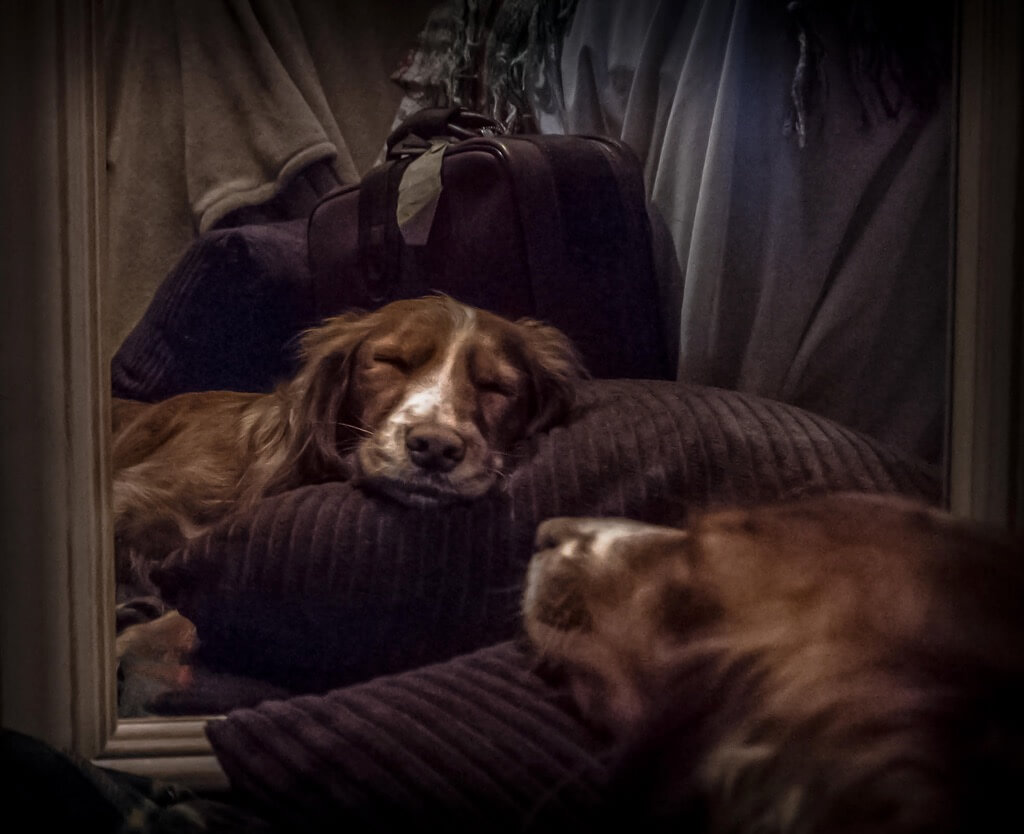
Play with reflections.
A tilt-shift lens is ideal for shooting reflections, such as mirror portraits, while keeping the camera out of sight. (See this simple tutorial for more details about that.)
But it’s also a great technique to use even if there’s no risk of your camera being in the reflection. That’s because the strangeness of tilt-shift photography matches the strange, distorted appearance of reflections. They play into each other, strengthening your image’s overall mood.
Emma Lord
Chad Kainz - Urban Reflections
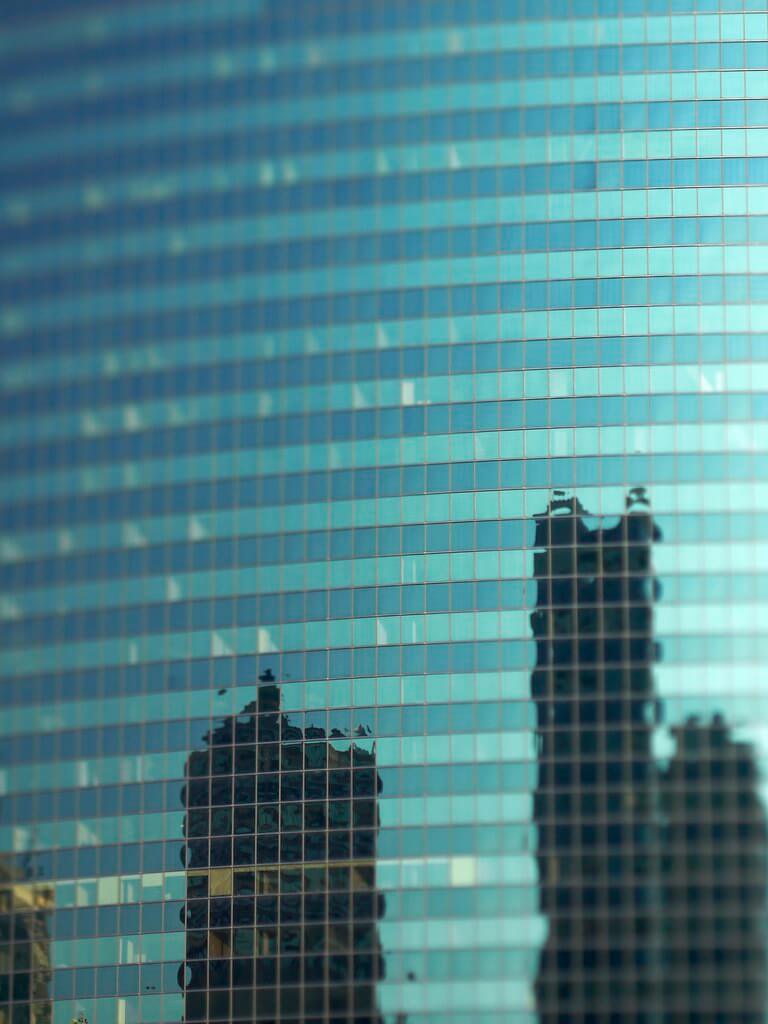
Sergey Norin
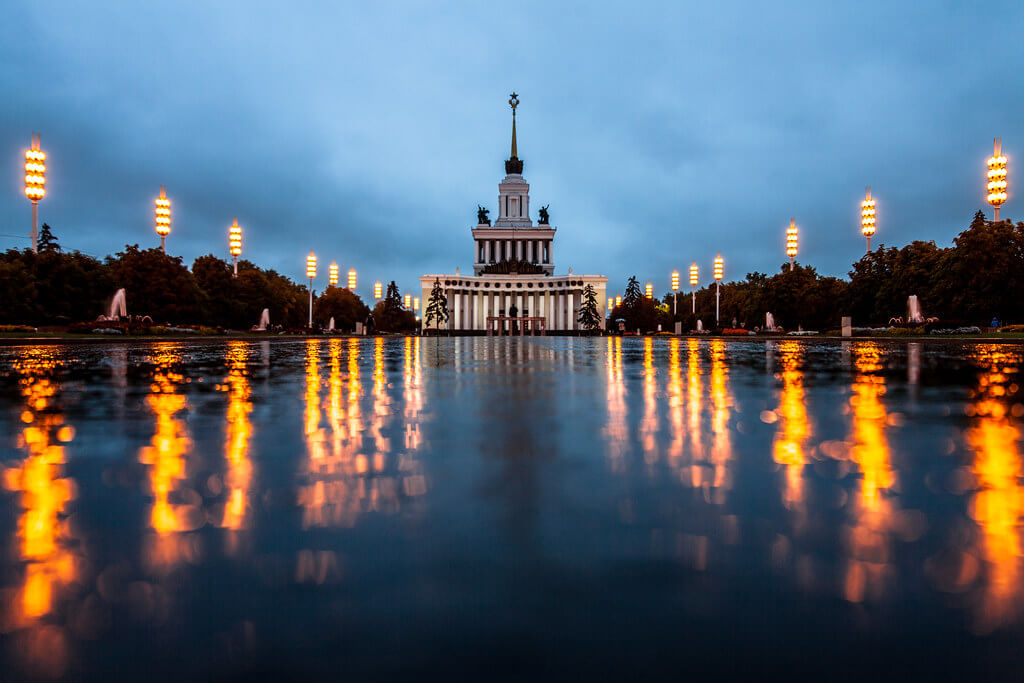
Nana B Agyei - Take A Dip

Capture a cityscape.
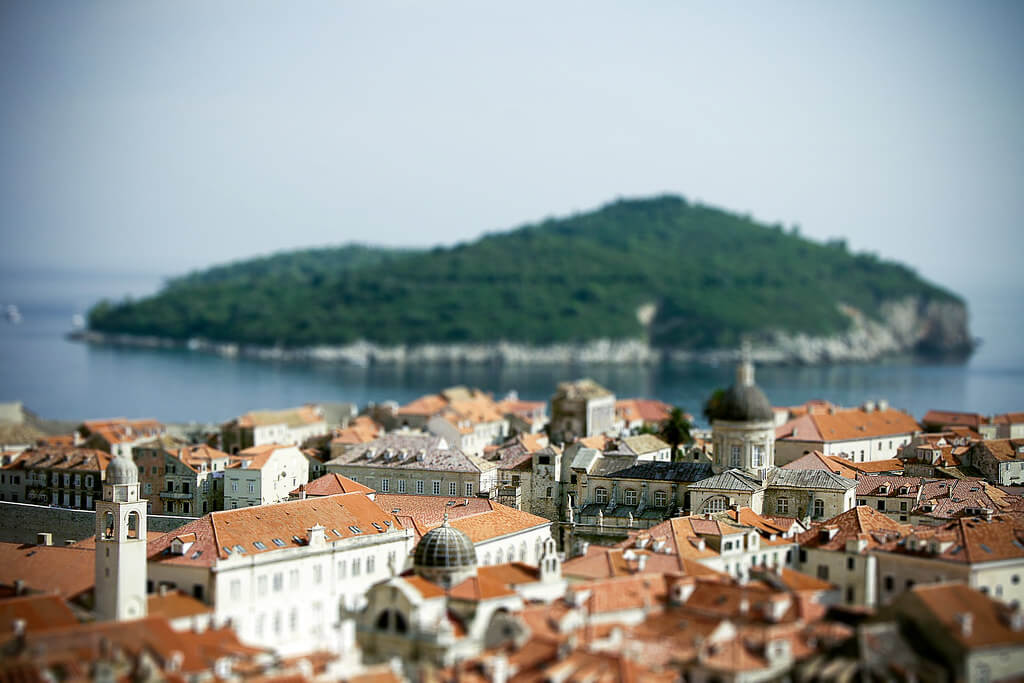
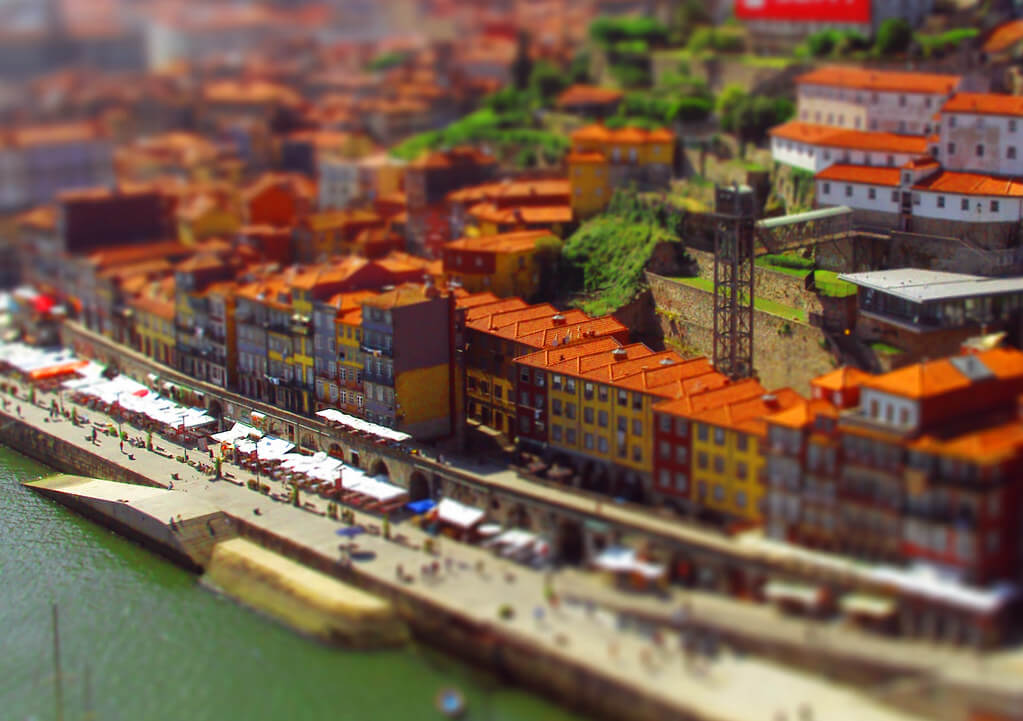
This is a classic way to use the tilt-shift effect. You take an imposing cityscape and make it look tiny, as if you were shooting from the clouds instead of close by.
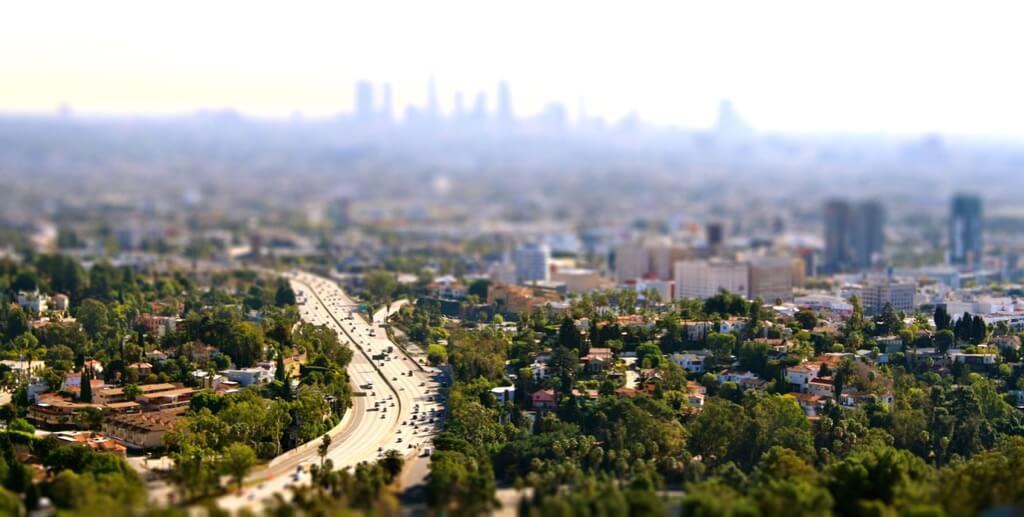
Some of the best tilt-shift cityscapes have either tall buildings like skyscrapers or interesting architecture that catches the eye. Otherwise, you can try including highways or railroad tracks in your cityscape, so that you really capture that miniature feeling.
Spencer D Hughes - Chicago skyline
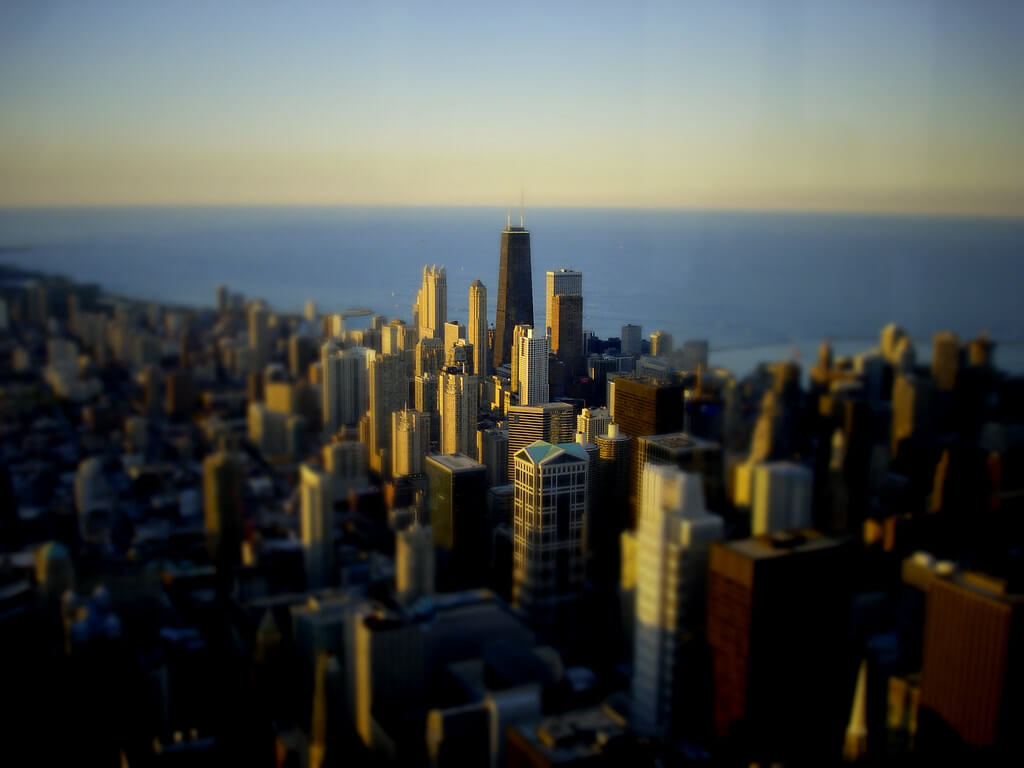
Charles Perita - Dubrovnik, Croatia
Brett Harrison - Los Angeles
Daniel Bettencourt - Oporto Waterfront
Shoot from above.
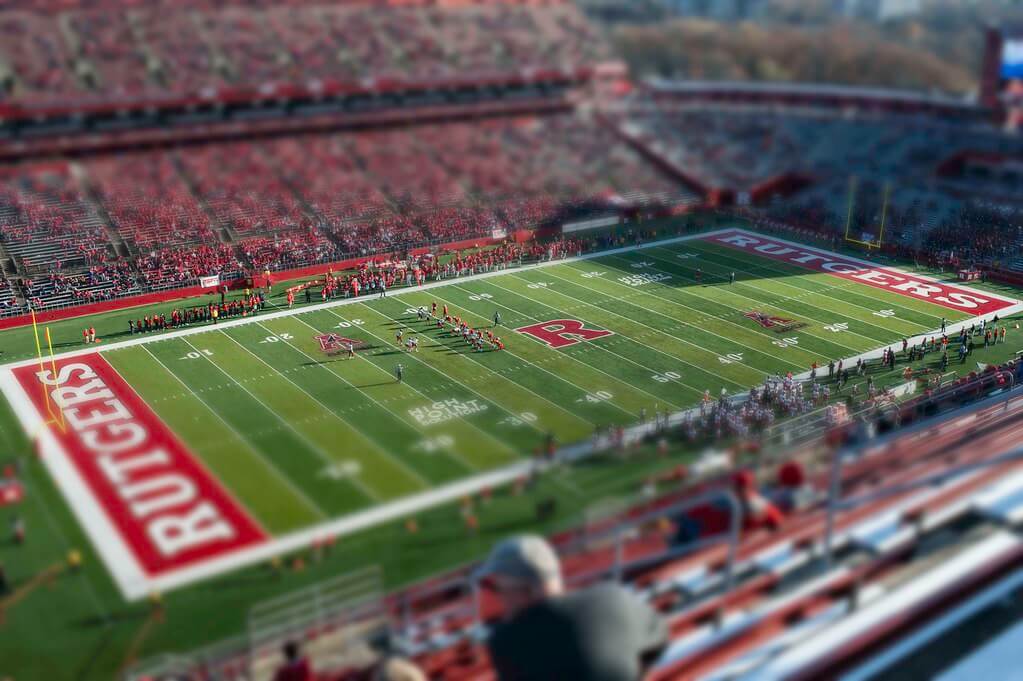
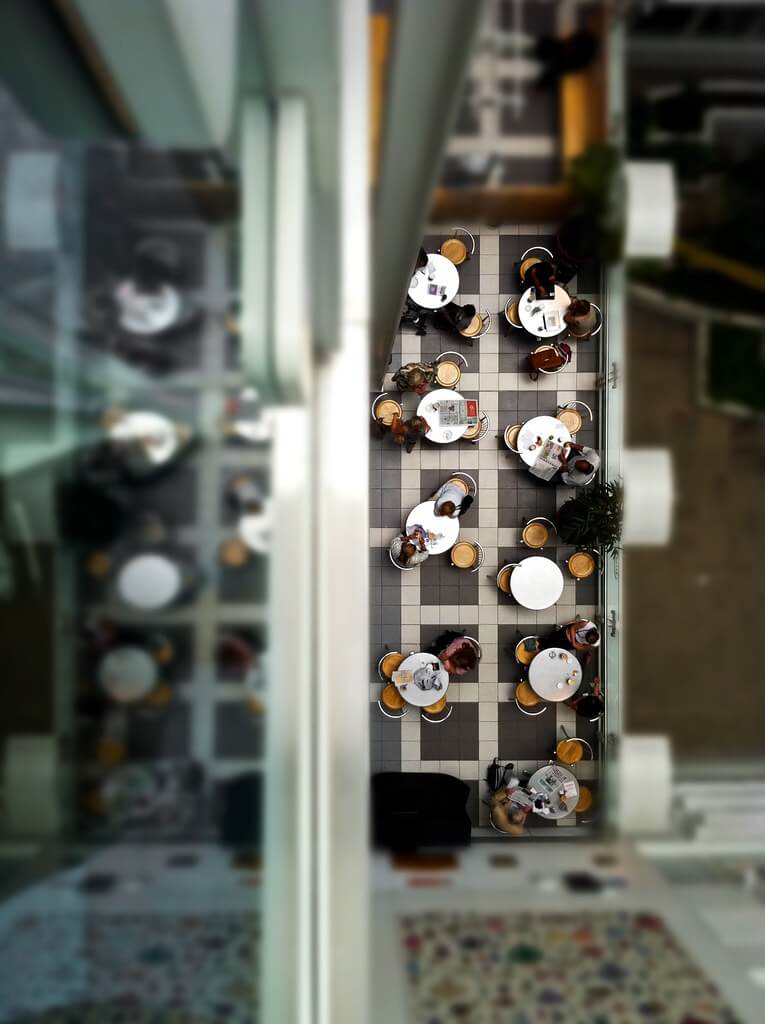
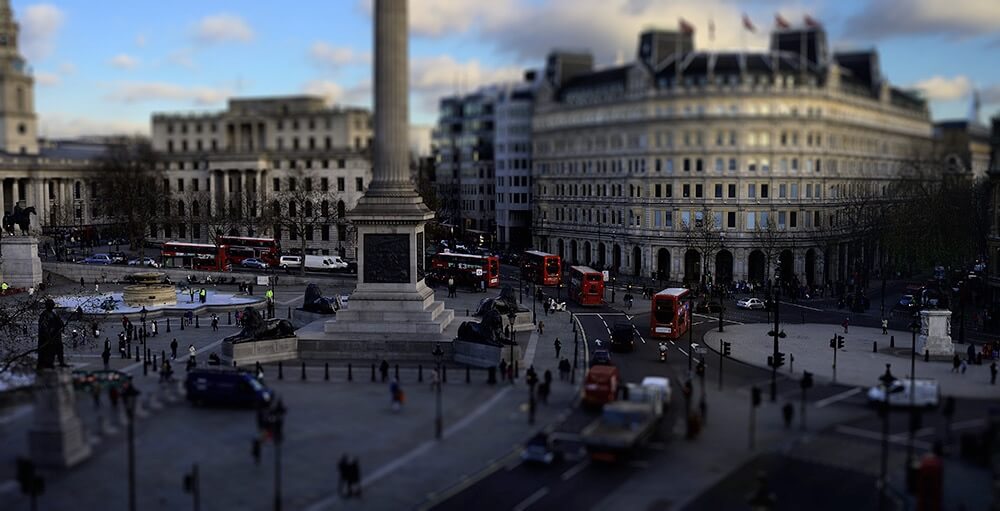
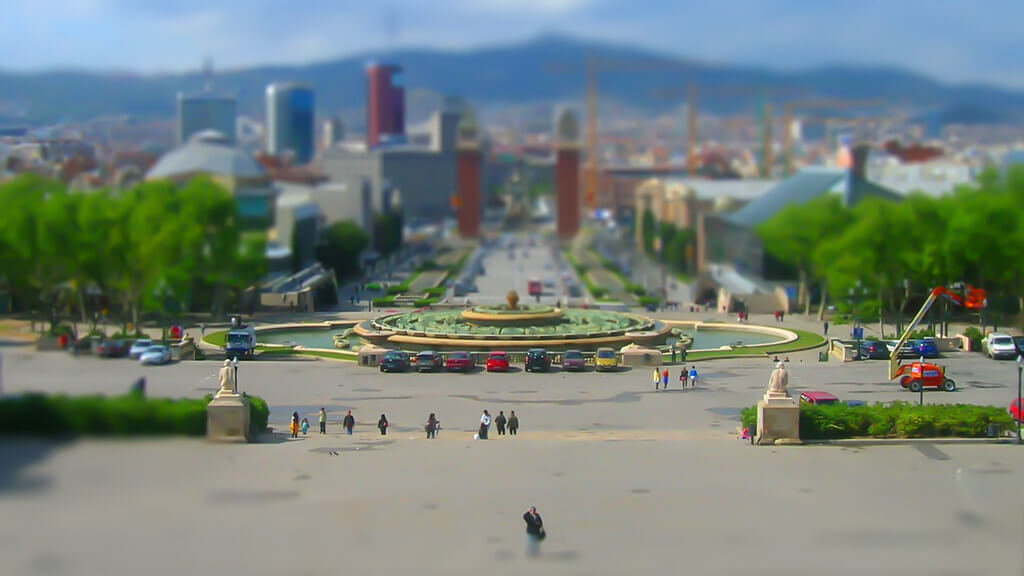
This is another classic approach to tilt-shift photography. It’s often used in cities, but you can actually use it in nearly any scene or environment, as long as you’re above your subject. That higher angle is key for creating the feeling of distance that will give your photo an otherworldly atmosphere.
Steve Stanger - mini city (nyc)
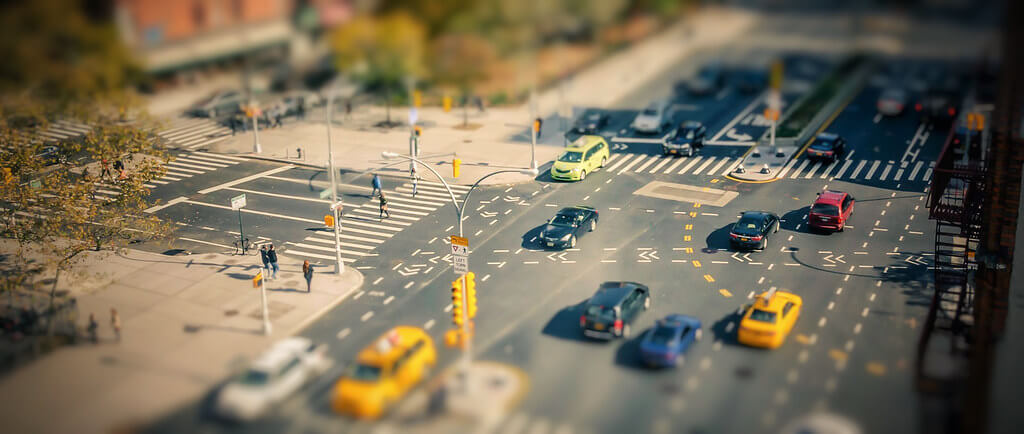
Troy Hood - Gridiron Grandeur
Nana B Agyei - Lunch Set
Paul Ransome - Trafalgar Square
Pascal Ghirardi - Tiny Barcelona
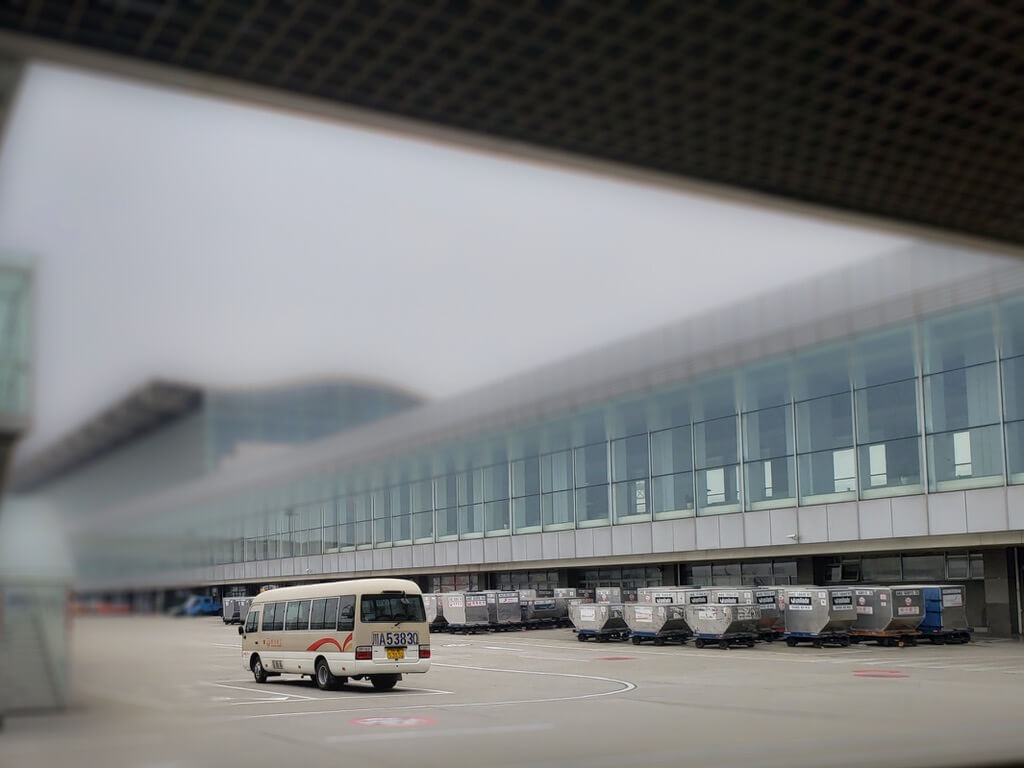
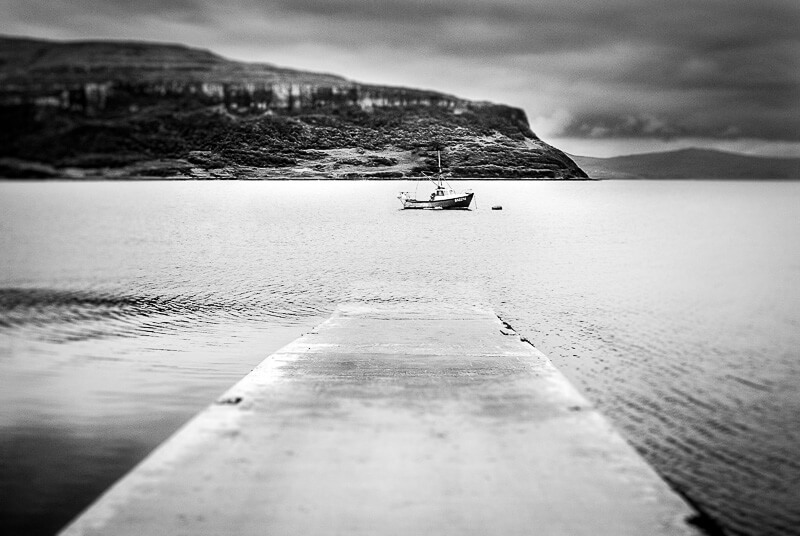
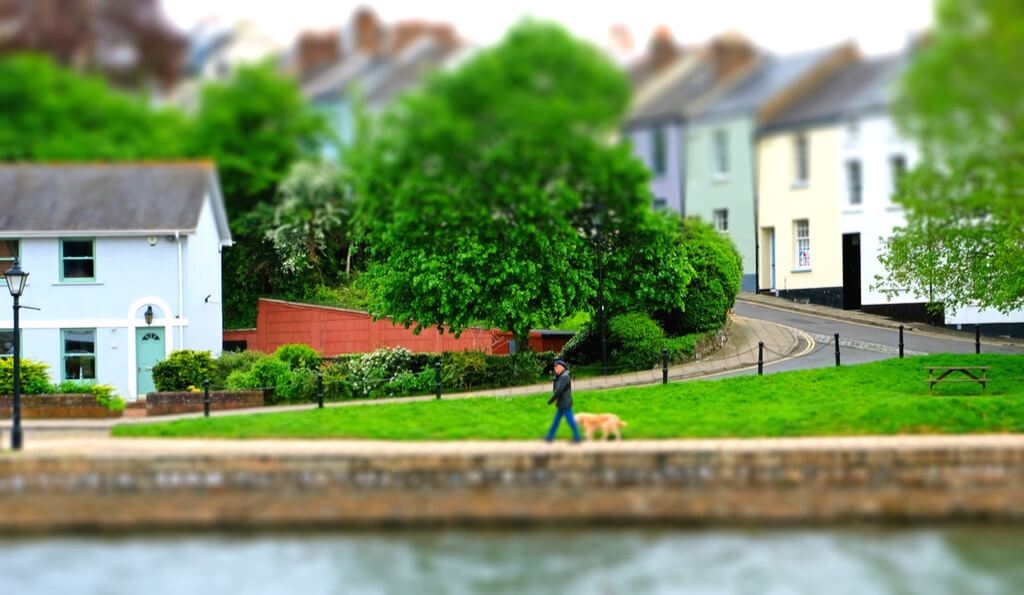
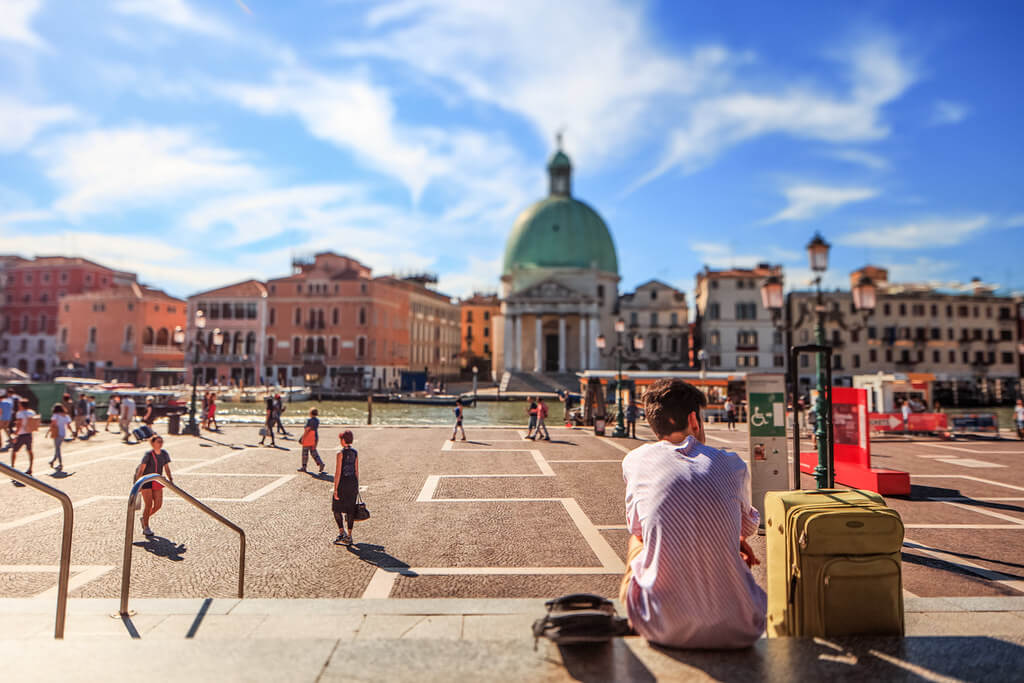
Choose a main subject, like a car or boat.
While cityscapes and architecture are reliable subjects for tilt-shift photography, you can try the technique with a wide range of other subjects, too. For instance, you can focus on a car, boat, or pedestrian, making those subjects look suddenly small and distant. The important thing is to choose a single subject, so that you can base your depth of field on it.
Lionel Vasquez
Greig Reid - Isle of Skye
Bobbie Smith
Angelo Bilang - Mini Barangay

Davide Gabino (aka Stròlic Furlàn) - aspettando - waiting
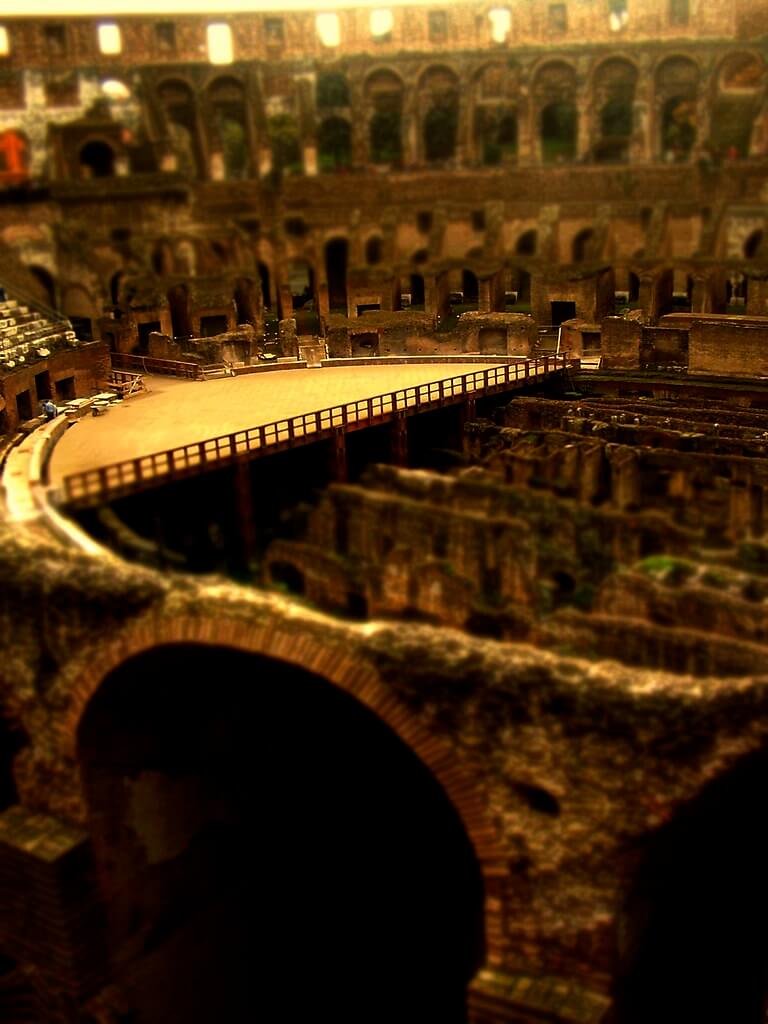
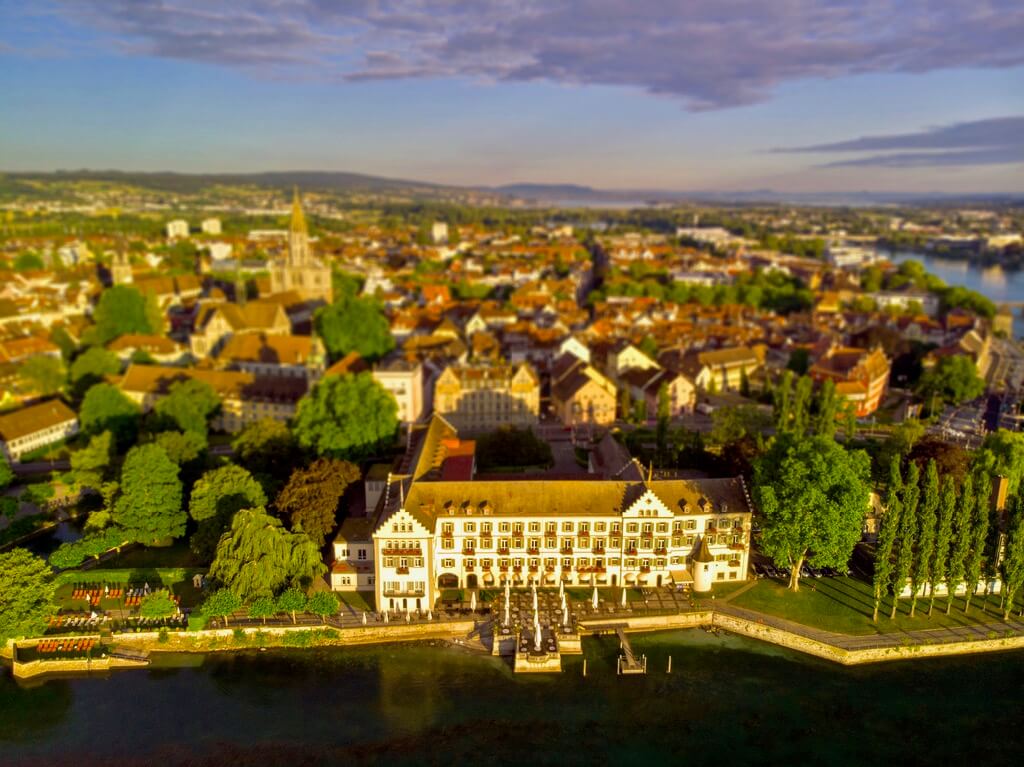
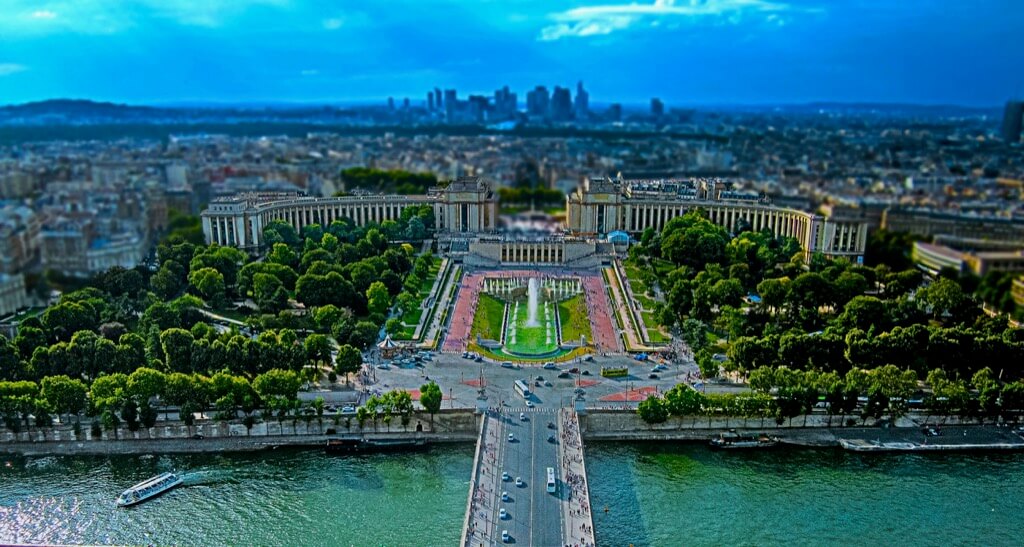
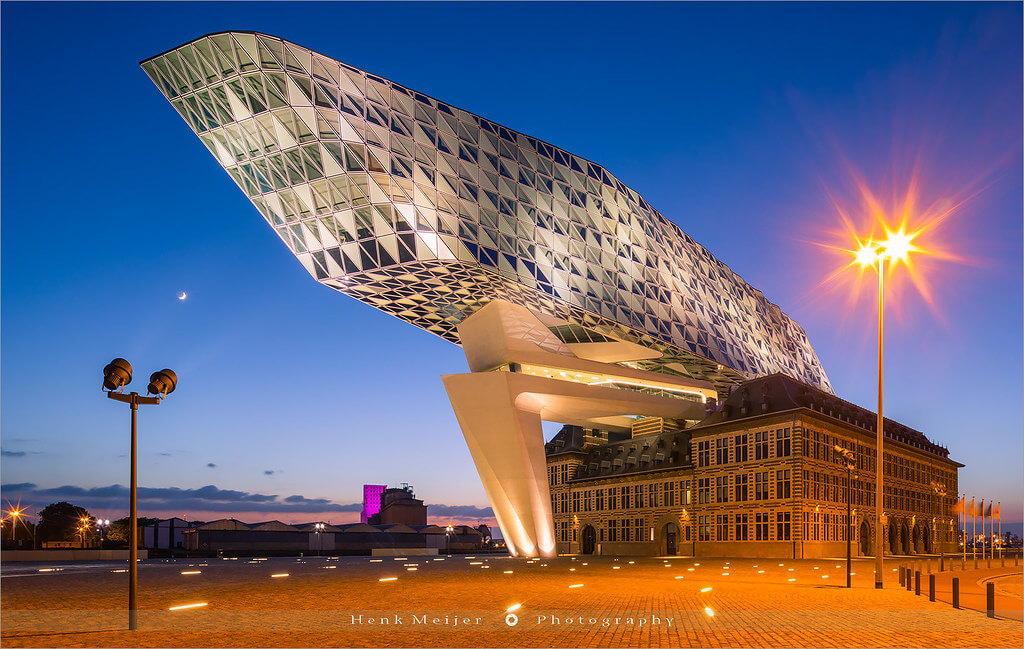
Photograph a landmark.
Famous sites typically get so much attention from photographers that you can start to feel like you’re creating a cliché rather than your own image. One way to give your shot a unique twist is to use a technique like tilt-shift photography. Besides setting your image apart from the rest, it can be fun to make something so grand and familiar look small and strange.
Piero Campilii - l’Amphitheatrum
Friedhelm Rücker - Madeira

Paul Newton - Steigenberger Hotel, Konstanz, Germany
Manish (Valmie) Joshi - Paris
Henk Meijer Photography - Antwerp Port Authority - Belgium
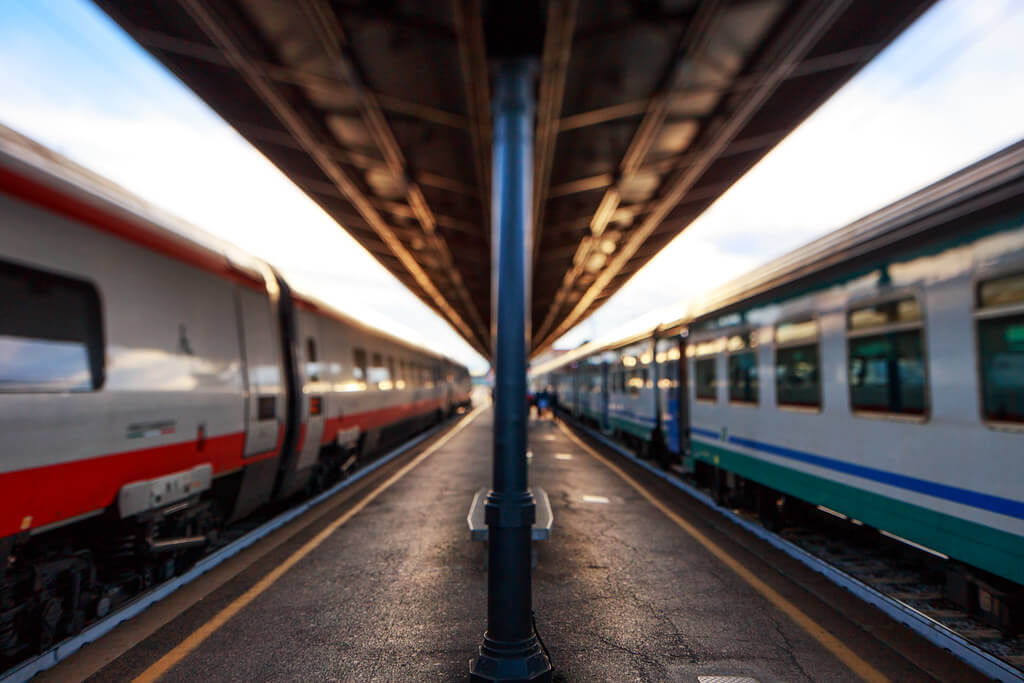
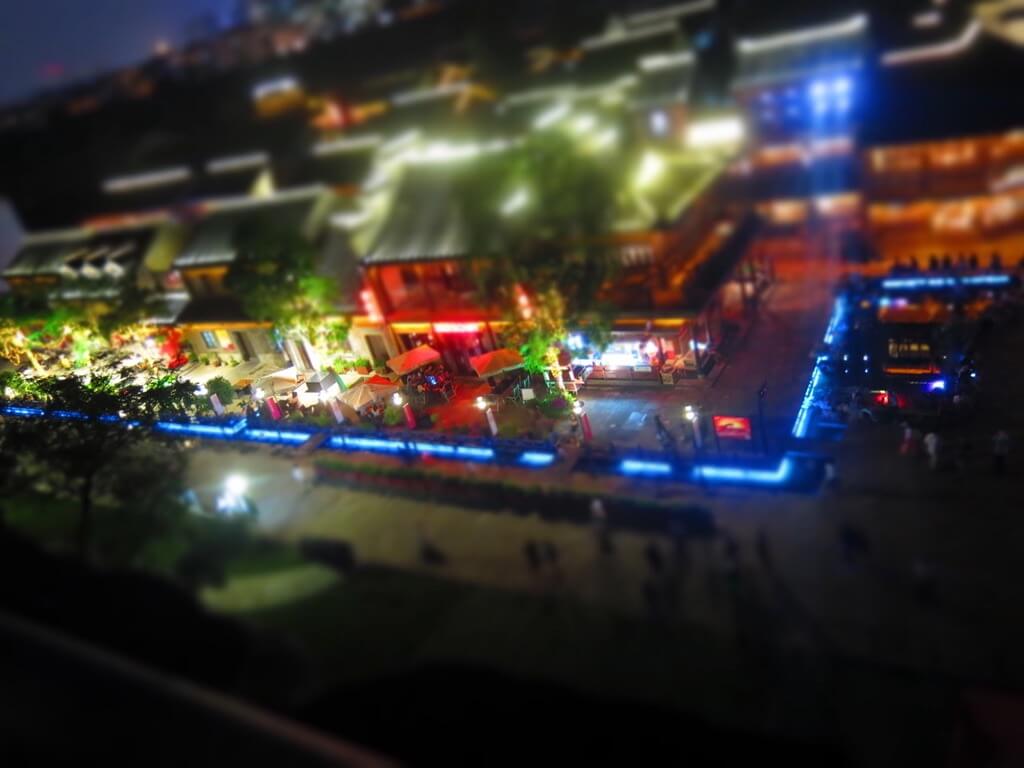
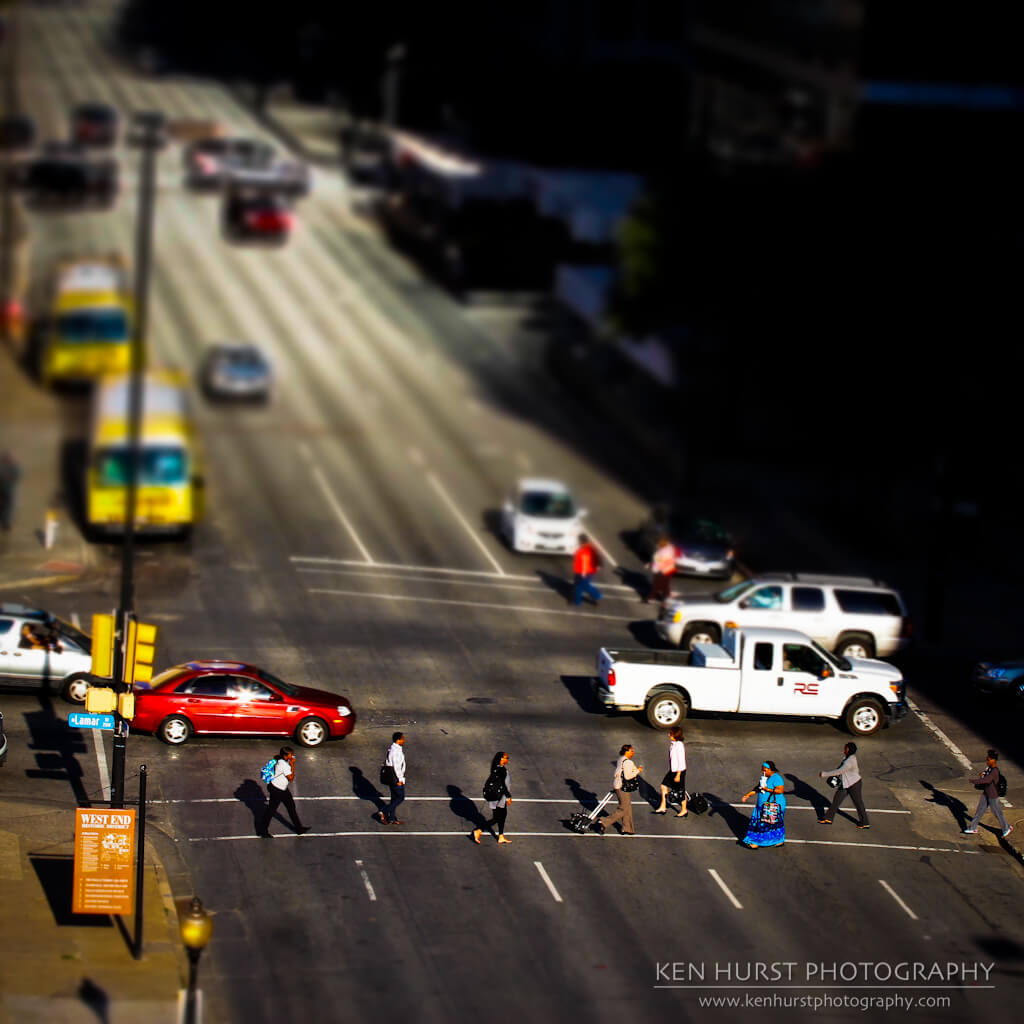
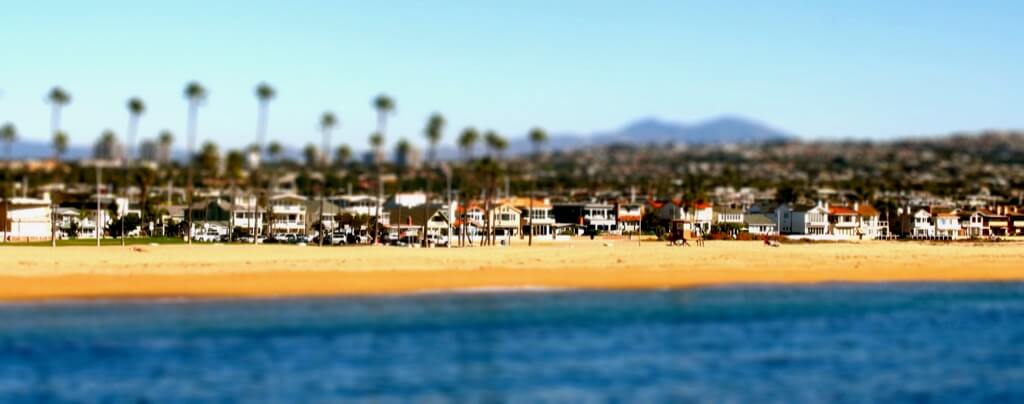
Compose your photo with strong lines.
Sometimes when trying a new technique, it’s easy to forget about the basic rules of composition. But no matter what technique you’re using, your composition will still be crucial. In fact, a strong composition can make your tilt-shift photo look powerful regardless of your subject.
For instance, if you compose your photo with strong lines, you can use practically anything as your subject. Even if your subject seems dull, the lines will capture your viewers’ interest and draw them into your photo.
Davide Gabino (aka Stròlic Furlàn) - Stazione di Udine
Alvaro Rautenberg - Nanjing
Ken Hurst - Tiny People Crossing The Street
Brett Harrison - Newport Beach
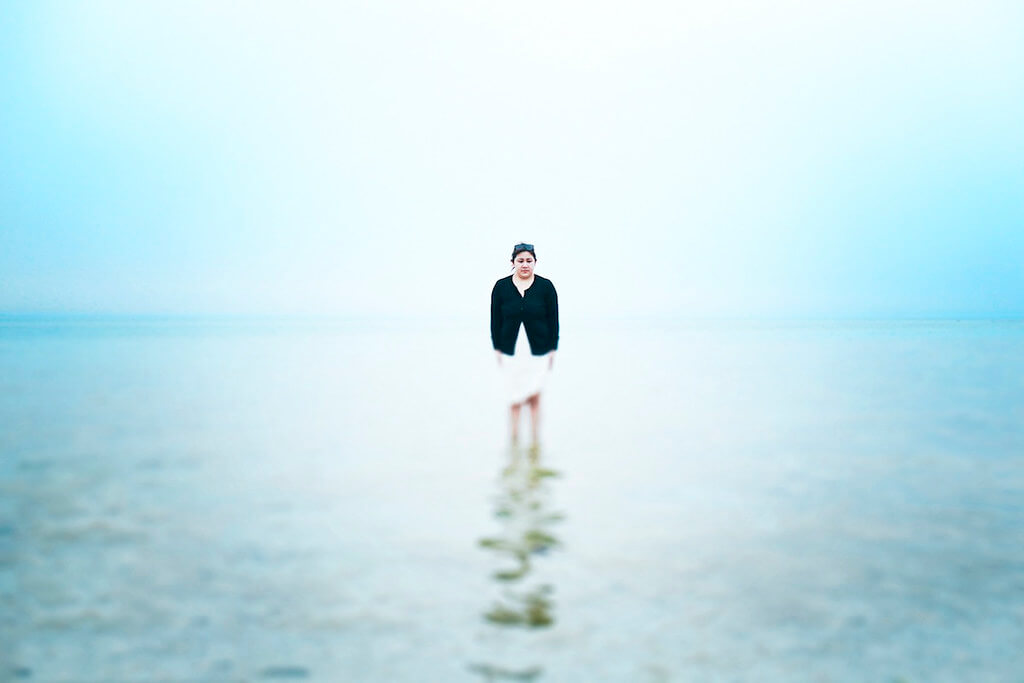
Take a portrait.
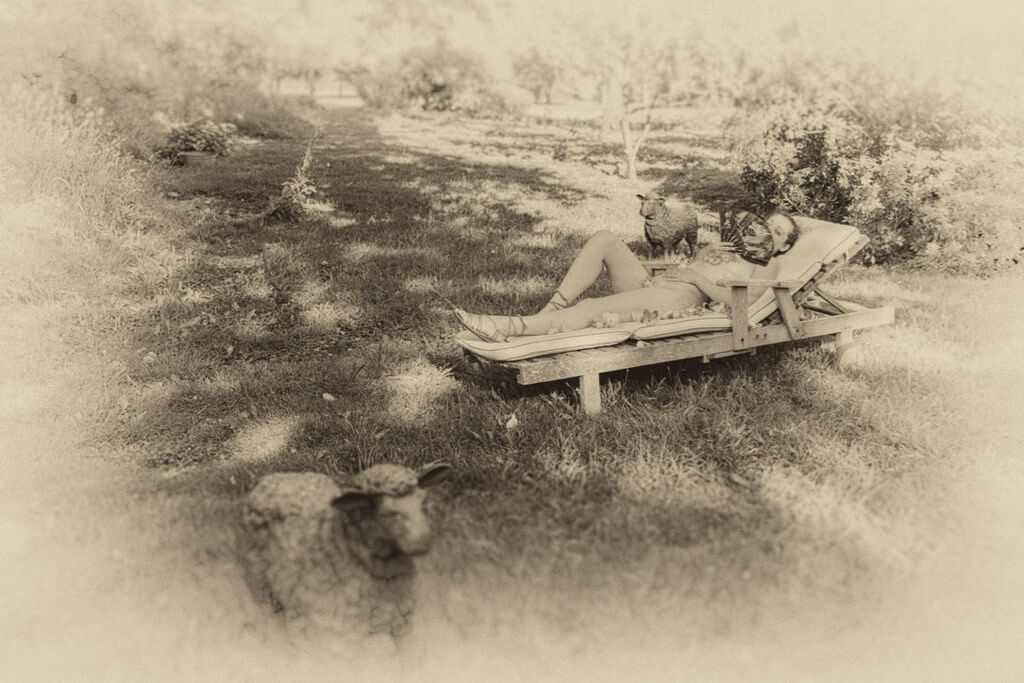
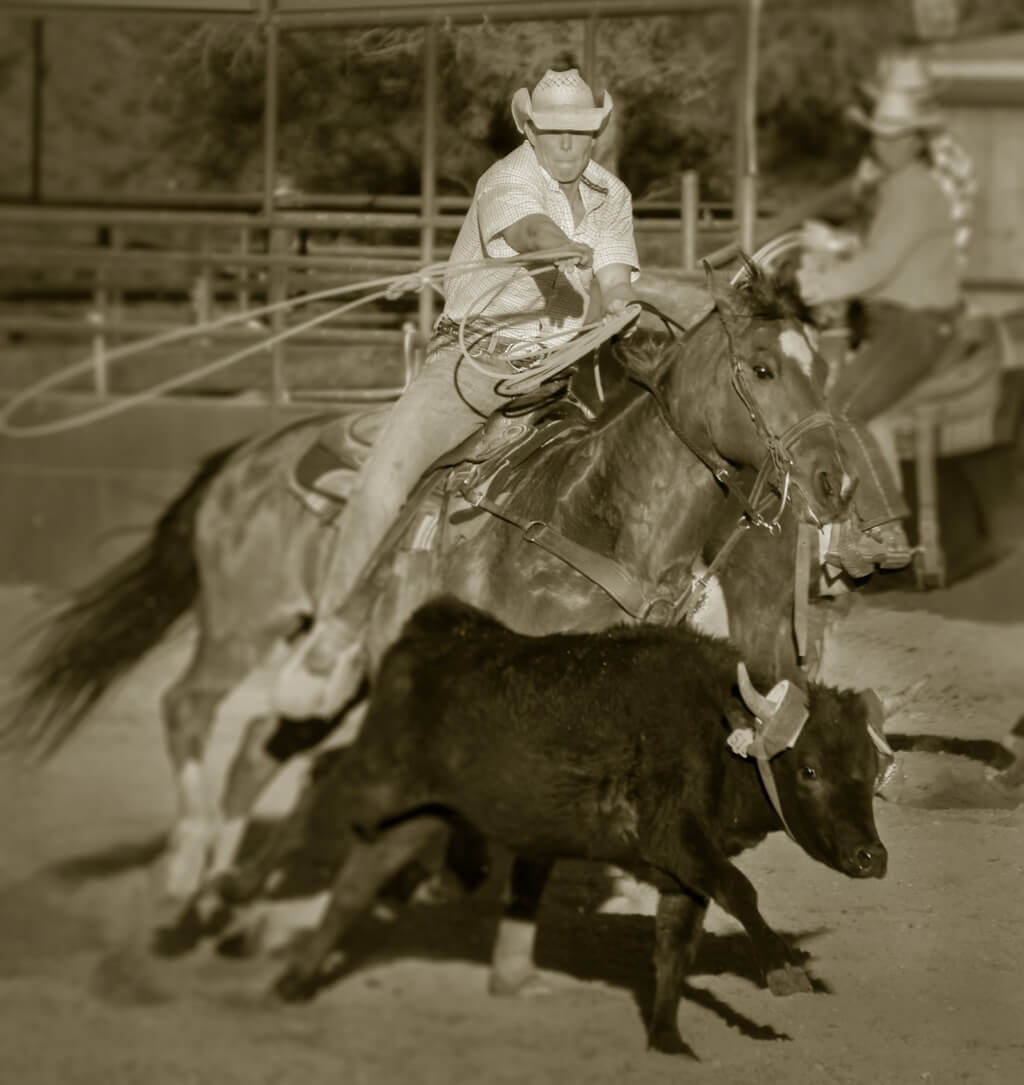
Because tilt-shift photography often brings to mind tiny cities and miniature cars, portrait photographers may not consider trying it. However, the tilt-shift effect can work brilliantly with certain portraits. It adds a touch of surreality, as if you’re looking at a scene from a dream or another time in history.
Photos Taken by Anthony - mimi
Garrett Ohrenberg - Space X Launch

Detlef AHLERS
Ralph Russo - Cowboy
Experiment with still life photography.
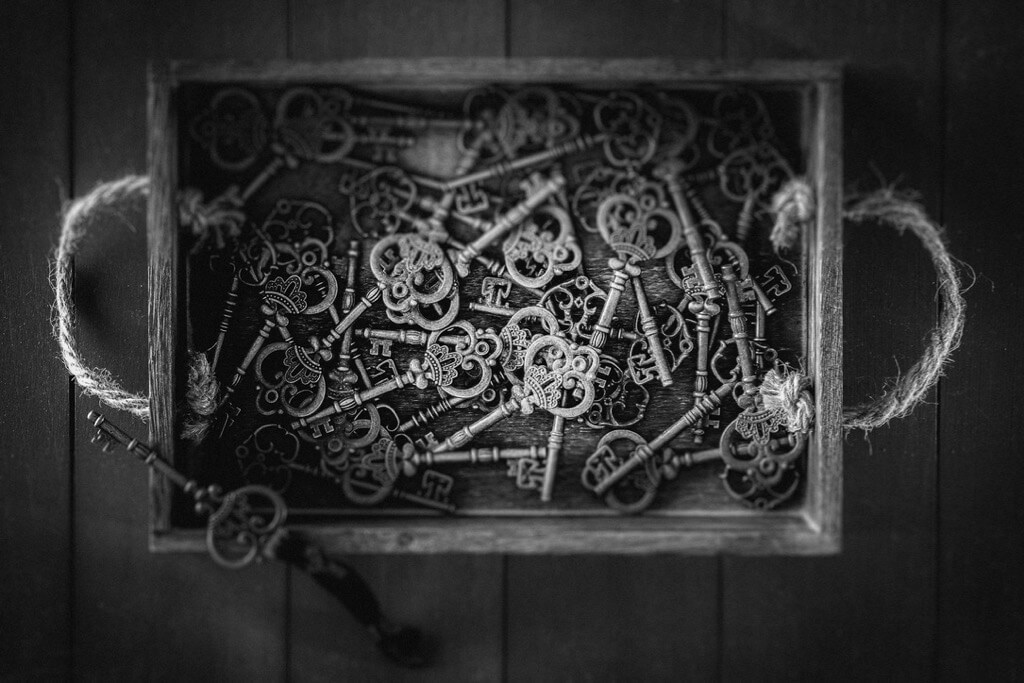
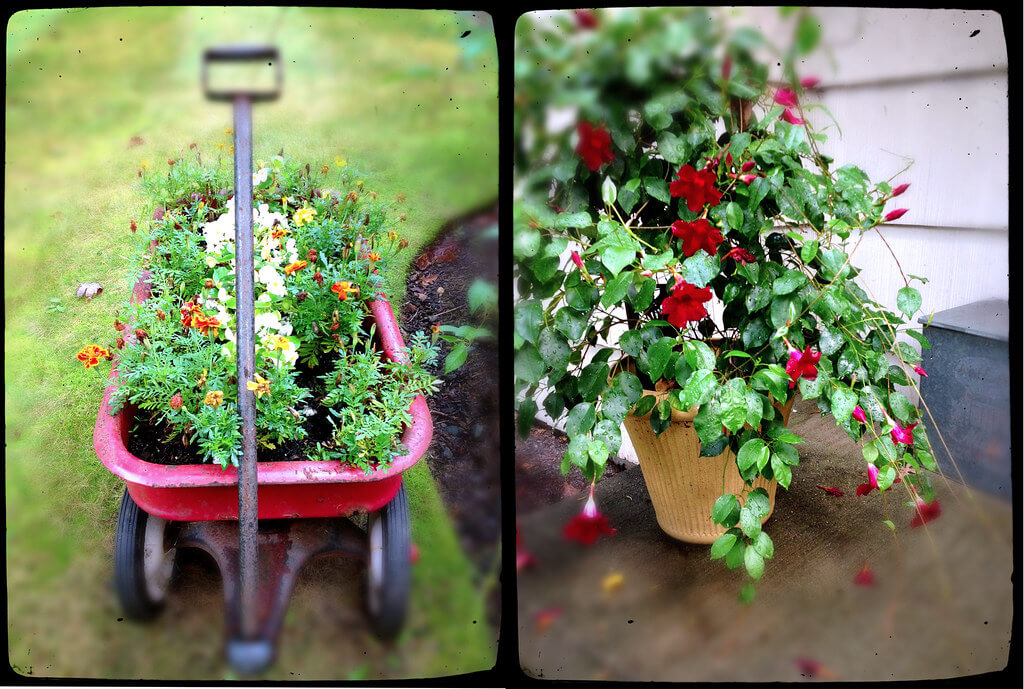
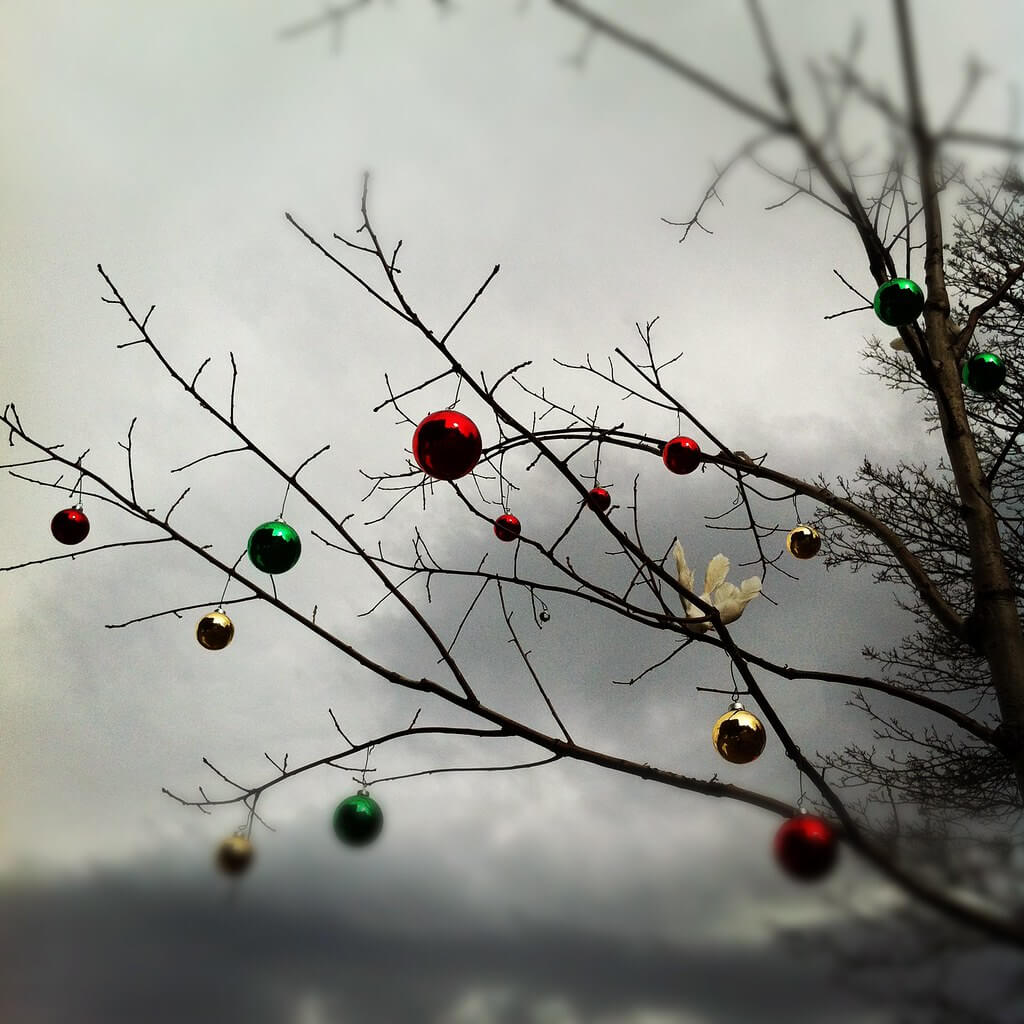
As with portraits, the tilt-shift effect can give still life photos an element of strangeness – not so much that the photo looks bizarre, but enough to give the photo a peculiar atmosphere. It’s a fun way to make commonplace subjects look instantly unique.
Linda Shankster - Box of Keys
Lorraine Minogue - tilt shift flowers
James Rogers - Xmas tree
Marco Verch - Ein Stück Zitronencreme Tarte auf einem weißen Teller, neben einer Gabel

Many of the above photos were selected from our community of amateur and professional photographers, both on Flickr and via our newsletter. We had a challenge for the topic “tilt-shift photography” and received a lot of great ideas and cool photos that way.
If you want to participate in future challenges, join our newsletter list. Then, you’ll be among the first to know about them!