HOME
  • Home
  • About
  • Contact
  • Contribute
  • Subscribe
  • Twitter
  • Flickr
 

Tutorials

9

Four Simple Ways to Improve Your Landscape Photos in Photoshop

by Christopher O’Donnell

All true landscape photographers take pride in their work, and that pride usually comes from hours of Photoshop editing. While there are numerous guides, tricks, and hints you can follow to edit your landscape photos beautifully, most take some time and dedication to perfect. Before you delve into the unforeseen, and sometimes complicated, world of Photoshop editing, consider the following simple techniques that are the foundation of impressive landscape photographs.
Improve Your Landscape Photos in Photoshop

1. Straighten Your Horizon

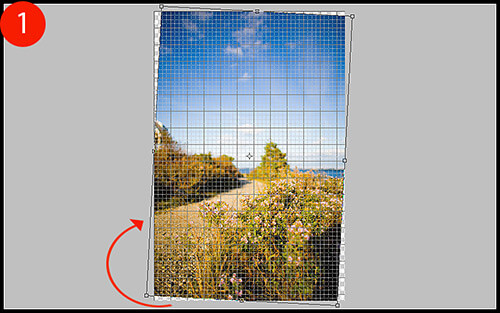
Presenting the most stunning photo of a sunset on the Venice canal won’t mean much if your horizon is crooked; it’s quite off-putting. To easily correct this in Photoshop, open your image and click View > Show > Grid to bring up some grid lines that you can use to guide your horizon line. With your transform tool (CTRL + T), rotate the image until your horizon is lined up correctly (Figure 1). To finish, crop out the uneven edges and press CTRL + H to put the grid away.
Improve Your Landscape Photos in Photoshop

2. Make Your Horizon Off-Center

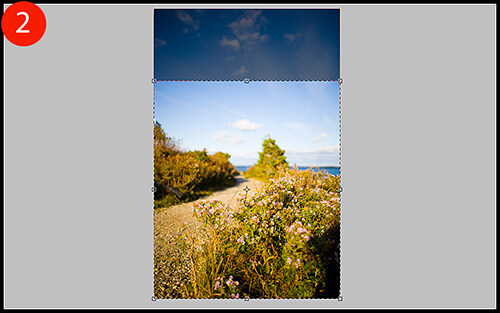
To be ascetically pleasing, a horizon that is not centered is much more intriguing to the eye and should be utilized whenever possible. In the example image, the horizon – although now straight – is too close to the center of the image. To rectify this, I am going to use my crop tool (keyboard shortcut: C) and eliminate at least half of the sky so that the balance of the photo is on the bottom, not the top (Figure 2).
Improve Your Landscape Photos in Photoshop

3. Rule of Thirds

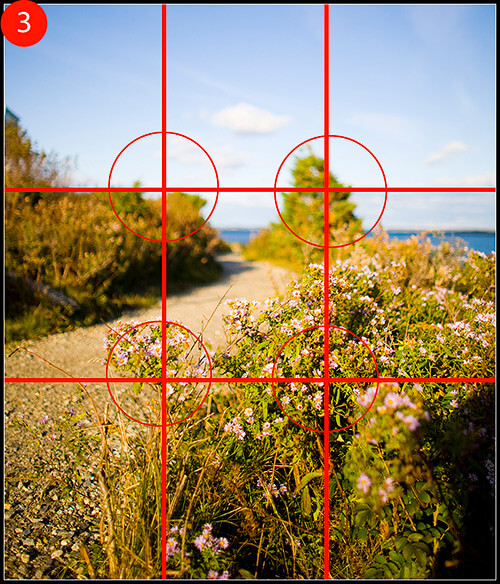
When looking at a photo, there are certain guidelines to follow composition-wise. One guide is called the “rule of thirds”, where you should visualize your photo as having two vertical and horizontal lines dividing the photo into thirds (imagine a tic-tac-toe board). The horizon (or other important line in your photo) should be along one of the horizontal lines, while other focal points should either lie along any of the lines or the point where they intersect (Figure 3). This creates an image that is more visually stimulating to the eye and allows it to wander across the whole image. If your photo has a focal point planted in the center of the frame, then the eyes will be drawn directly to the center and may not see a need to explore the other elements in your composition.
Improve Your Landscape Photos in Photoshop

While ideally you should apply this rule out in the field rather than in post process, us photographers do not always have the time – or patience – to consider this, and rely on programs like Photoshop to line our images up correctly.

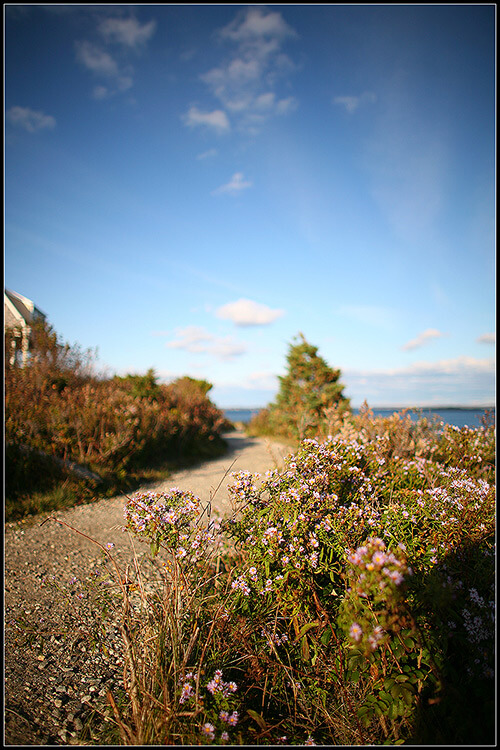
Looking at Figure 3, you can see that in the example image a major focal point (the tree in the top-right circle) is lined up perfectly with one of the intersection points. However, the horizon seems to be a bit low under the top horizontal line. To correct this, I’m going to crop out a bit more sky, and also crop out that distracting shadow in the bottom right-hand corner of the image.

4. Photo Filters

Film photographers – and some digital ones as well – use photo filters when out in the field to cast special coloring effects over their images. Warming filters will cast a slight orange/yellow hue to your image, while cooling filters will give your photo a blue hue. These are just a small sample of countless other filters you can use to add special effects to your photos. In Photoshop, however, you can easily add these effects with little effort.

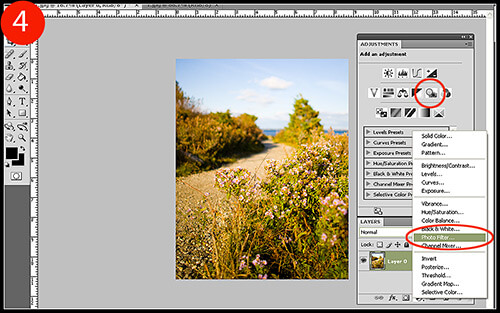
To add a Photo Filter adjustment layer to your image, click on the “new adjustment layer” icon on your layers palette toolbar, or simply click on the appropriate icon on your adjustment palette (Figure 4).
Improve Your Landscape Photos in Photoshop

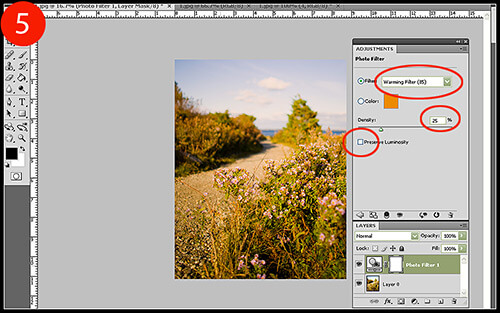
5. While the example image is coming together nicely, the blue sky could use a nice warming filter. I chose “Warming Filter (85)” as my filter choice and set the Density to 25 (Figure 5). I deselected the “preserve luminosity” box since the warming filter was starting to create some blown highlights.
Improve Your Landscape Photos in Photoshop

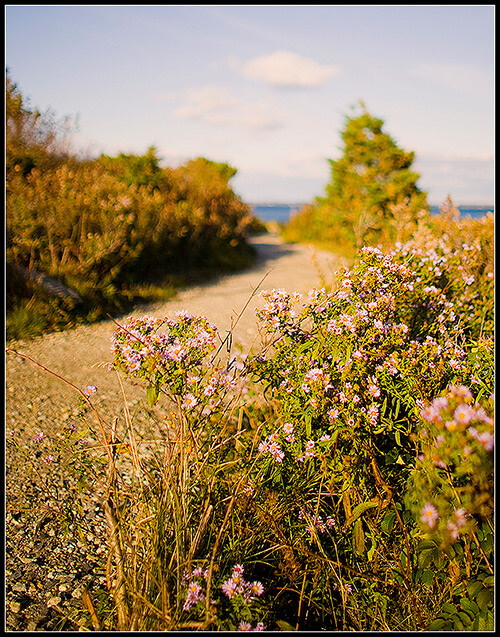
When compared to our original image, the improvement is quite apparent.
Improve Your Landscape Photos in Photoshop

Improve Your Landscape Photos in Photoshop

While this image isn’t even close to being at the end of my editing process, it has benefited greatly from a few simple visual enhancements that only took a total of ten minutes to complete. If you incorporate this tutorial into your workflow, it will provide your landscape images with a very solid foundation to begin applying your editing techniques to.

Christopher O'Donnell Christopher O’Donnell is a professional landscape/portrait photographer who lives on the coast of Maine. When not scouting for new locations or spending time with
his “sons” (his two yellow labs), he is a freelance writer who authors photography course work.

Website: christopherodonnellphotography.com

Related Posts

If you found this article helpful, check out...

  • Authentic Grainy Photoshop Effect for Your Black and White Photos


  • Get It Straight – Using the Photoshop Ruler Tool


  • Master Realistic Eye Editing in Photoshop


  • Photography Tips – How to Shoot Amazing Landscapes


  • How to Apply a Custom Lens Vignette in Photoshop


If you enjoyed the article, help us spread the word by giving us a tweet!


Reading: Four Simple Ways to Improve Your Landscape Photos in PhotoshopTweet ThisSubscribe to our RSS feed

9 Comments

  • Gareth

    December 22nd

    I don’t think the rule of thirds is working here. I much prefer the height of the original. Your “enhanced” version just looks cut off, and you have lost the nice colour contrast between the sky and the plants.

  • JB

    December 22nd

    There is a better way to straighten a crooked horizon: Draw a line on the horizon using the rule tool (I) and then Image -> rotate canvas -> arbitrary.

    The right value is put as default, ok and that’s it.

  • @todayinart

    December 22nd

    Another way to straighten your photo in Photoshop is: Filter > Distort > Lens Correction. Now choose the “Straighten Tool” (A) and draw a vertical or horizontal line along the part of the image that you want straightened. Click OK and your done!

  • Bill Jones

    December 22nd

    Thanks for all the excellent tips guys.

  • Christopher O'Donnell

    December 23rd

    @ Gareth:

    I actually didn’t like the height of the image; I thought it to be an empty space and didn’t add any interest to the photo, and also unbalanced it greatly. I think you see it as “cut off” because you had the original to compare it to. If there was some interesting cloud formations, I may have kept it…bu that is not the case.

    As far as the color contrast, I like images that lean towards the monochromatic side of things….high contrast between the sky and ground puts me off usually. However, to each their own!

    @ JB and todayinart:

    Thanks for the added tips, I’ll try them out!

  • Saylor

    December 29th

    If we were voting, I’d vote for the original, although I would want to crop the building out. I think the sky adds a lot to the photo. It balances out the darkness at the bottom of the shot. Oh wait, on second look, that’s a cast shadow on the bush. Don’t like shadows that look like they could be the photographer. hrm. Maybe I do like the cropped one more now. Anywho. It’s a wonderful shot either way. And I do see your point on having a more monochrome shot in the end.

  • Christopher O'Donnell

    January 2nd

    @ Saylor

    Thank you for the comment. I do see how the original is appealing and in hindsight, I probably should’ve used a stronger photo to serve as an example. I was focused on the path and how appealing that was instead of the sky, but it seems a lot of people would rather see the sky retained in this image.

    However, the tutorial was aimed more towards showing how to execute the most commonly used techniques when editing landscape photos – as long as people can still get that out of it, I’m happy!

    Best,
    Christopher

  • Amit

    January 6th

    lots of suggestion for horizon line..gr8 tips thanx

  • Rincewind21

    February 4th

    I like the original one more too. The worst change (in my opinion) ist the Photofilter. Its changinge the soft lightning from the original one to an oversaturated picture.

Leave a Reply

Subscribe for Free

Updated regularly with tips, resources, and inspiration for photographers novice to pro.
RSS Feed | Email
Follow us on Twitter

Search

Topics

  • 101
  • Inspiration
  • How To's
  • Tips
  • Resources
  • Freebies
  • Updates
  • Tutorials
  • Tools
  • Gear
  • Photographers

Recent Articles

  • 30 Striking Photos of Urban Decay Beauty
  • Helpful Photography Cheat Sheets to Make Your Life Easier
  • 40 Outstanding Examples of Conceptual Photography
  • Photographer Showcase – Wayne Martin Belger
  • Quick Tips for When to Use Your Flash and How to Avoid It
  • Curing Blown Highlights with RAW
  • Tips for Creating a Photographic Journal of a Single Year
  • How To Choose a Lens That’s Right For You
  • Get It Straight – Using the Photoshop Ruler Tool
  • How to Achieve a Clear Foreground and Background in Your Photos
  • Dodge and Burn to Correct Exposure
  • Helpful Portrait Photography Tips
  • Action Runner 3.0 Giveaway
  • 100+ Useful Textures for Your Next Photo Manipulation Project
  • How to Capture Bold Colors in Your Photography
  • Combining Images to Create an Antique Look in Photoshop
  • 40 Breathtaking Examples of Serene Sunrise Photography
  • Quick Tips to Help You Take Sharper Photographs
  • Tips For Macro Photography – The Extreme Close-Up
  • Website-Ready Your Images with Photoshop Actions
  • Useful Tips for Shooting in Low Light Situations
  • Quick Tips for Photographing Wildlife
  • 20 Photoshop Lighting Effects Tutorials for Image Enhancement
  • Authentic Grainy Photoshop Effect for Your Black and White Photos
  • Quick Tips for Photographing Indoor Sporting Events

TPA Community Portfolio

    wolkswagenwolkswagenA Row, a Pasture [Switzerland]Chemins parallèlesvitrine tempéréelaPlayaEsteponaBaikal beachWhat Are You Waiting For?The Leica

    Share your work here!

Recent Posts

  • 30 Striking Photos of Urban Decay Beauty
  • Helpful Photography Cheat Sheets to Make Your Life Easier
  • 40 Outstanding Examples of Conceptual Photography
  • Photographer Showcase – Wayne Martin Belger
  • Quick Tips for When to Use Your Flash and How to Avoid It

Recent Comments

  • Very good info. i think i'm gonna make a little...
    photografied
  • Buddy, that was really helpful. keep the good job...
    Kadri
  • Two bokeh I'm proud of : http://picasaweb.google.com/nikkel/PublicGalleryMisc#5423645628555608466 http://picasaweb.google.com/nikkel/PublicGalleryMisc#5423646688021085186...
    Nikkel
  • Great post! Thanks a lot :)...
    Hamadi

About

The Photo Argus is a resource for photographers novice to advanced. We bring you useful information, inspiration, technique, photographer showcases and more.

Be a Contributor
Do you have a photography technique or tip to share? We would love to here about it. Please feel free to contact us to find out how to become a contributor.

Background Image By - Rob Walker


© Copyright 2010 The Photo Argus