HOME
  • Home
  • About
  • Contact
  • Contribute
  • Subscribe
  • Twitter
  • Flickr
 

Tutorials

0

Authentic Grainy Photoshop Effect for Your Black and White Photos

by Christopher O’Donnell

One of the most beautiful aspects of black and white photography is having the ability to create images with intense grain or noise that gives your photo a dark, gritty, and highly texturized effect. However, we do not always seize the opportunity to use this tool in-camera. Did you forget to bump up your ISO setting again? Or perhaps you found an old image that would look stunning with some high-contrast grain added to the surface? Starting now, there are no more excuses for you since you’ve just discovered a unique and completely reversible way to add authentic-looking grain to your photographs.

1. It would be best to add this effect towards the end of your editing process, as it would really disrupt your workflow to add a grain effect then decide to change the orientation or crop.

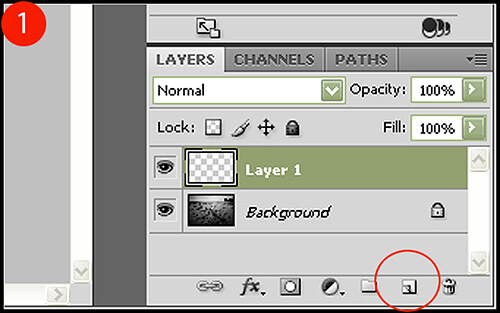
With your edited image open, create a new layer by clicking on the appropriate icon in your layers palette toolbar (Figure 1).
Authentic Grainy Photoshop Effect

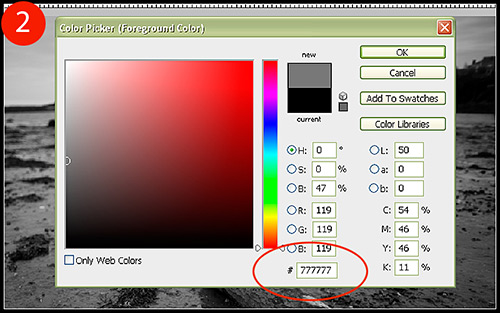
2. Select your Paint Bucket tool and set the foreground color to a neutral gray by typing “777777” into the web color box (Figure 2). Now click anywhere on your image to completely submerse your new layer with that color.
Authentic Grainy Photoshop Effect

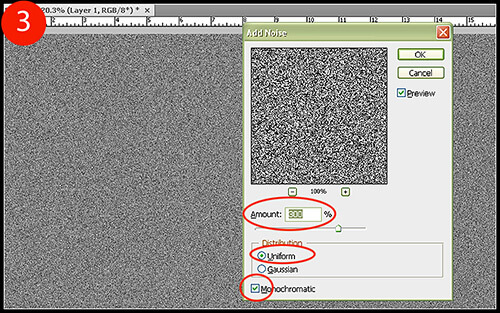
3. Click Filter > Noise > Add Noise so that we can add our grainy texture to your new layer. Make sure the Monochromatic box is ticked so that the noise added is in grayscale, and select Uniform as the Distribution type. To finish, set your Amount to 300% (Figure 3) and click OK to add this effect.
Authentic Grainy Photoshop Effect

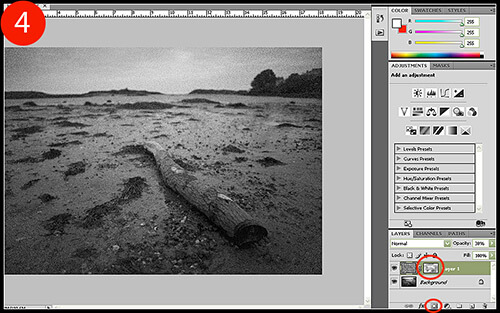
4. Obviously, we can not see our base image. Let’s correct this by lowering the layer opacity to 30% so we can see what we are working with.

To further our film grain customization, we are going to mask out parts of the film grain layer so that the effect is not so uniform. First, add a masking layer by clicking on the “add a layer mask” button in your layers palette toolbar (Figure 4). To slightly remove the grain from areas in your photo, click on your Brush tool and set the foreground color to black. With a soft brush (one with 0% Hardness) set to an Opacity level of around 10% to start, begin to brush areas of interest you wish to become more apparent. In this example, I removed some grain from the log and seaweed in the foreground, and a little bit from the horizon.
Authentic Grainy Photoshop Effect

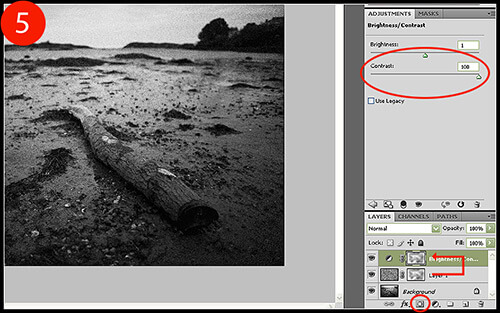
5. While the grain is starting to come together nicely, this layer has really lowered the contrast of our photo. To bump this back up, add a new Brightness/Contrast adjustment layer by either clicking on the appropriate icon in your adjustment palette, or by selecting the “create new adjustment layer” icon on your layers palette toolbar (Figure 5). Once the new adjustment layer has been added, increase your Contrast to 100 so that the gray haze caused by our grain layer is eliminated.

To finish this step, click on the layer mask for your film grain layer and, while holding down the ALT key, click-and-drag the layer mask and drop it onto the adjustment layer mask to replace it. A window will pop up asking if you want to replace the layer mask; click OK to apply the change.
Authentic Grainy Photoshop Effect

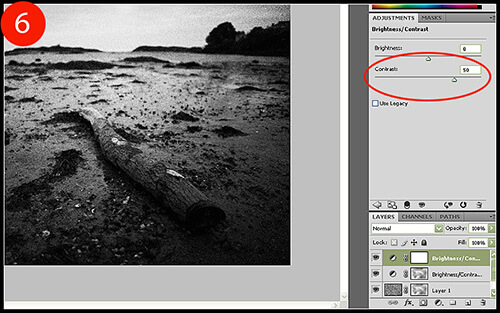
6. The colors still look a bit muted and not quite at the gritty level we’re aiming for. One last time, we are going to create another Brightness/Contrast adjustment layer as described in Step 5. However, we are only going to increase our Contrast to 50, which will add just enough extra contrast to obtain the look we want (Figure 6). You do not need to clone the layer mask again for this step.
Authentic Grainy Photoshop Effect

Having optional film grain is quite the luxury, although I think us digital photographers have become quite accustomed to post process miracles by now. With this tutorial in your digital arsenal, you can take any black and white photo and bless it with a gritty, grainy texture usually only seen in film photography.

Christopher O'Donnell Christopher O’Donnell is a professional landscape/portrait photographer who lives on the coast of Maine. When not scouting for new locations or spending time with
his “sons” (his two yellow labs), he is a freelance writer who authors photography course work.

Website: christopherodonnellphotography.com

Related Posts

If you found this article helpful, check out...

  • Combining Images to Create an Antique Look in Photoshop


  • Master Realistic Eye Editing in Photoshop


  • How to Apply a Custom Lens Vignette in Photoshop


  • How to Achieve Porcelain Skin with Natural Airbrushing in Photoshop


  • Four Simple Ways to Improve Your Landscape Photos in Photoshop


If you enjoyed the article, help us spread the word by giving us a tweet!


Reading: Authentic Grainy Photoshop Effect for Your Black and White PhotosTweet ThisSubscribe to our RSS feed

Leave a Reply

Subscribe for Free

Updated regularly with tips, resources, and inspiration for photographers novice to pro.
RSS Feed | Email
Follow us on Twitter

Search

Topics

  • 101
  • Inspiration
  • How To's
  • Tips
  • Resources
  • Freebies
  • Updates
  • Tutorials
  • Tools
  • Gear
  • Photographers

Recent Articles

  • Helpful Photography Cheat Sheets to Make you Life Easier
  • 40 Outstanding Examples of Conceptual Photography
  • Photographer Showcase – Wayne Martin Belger
  • Quick Tips for When to Use Your Flash and How to Avoid It
  • Curing Blown Highlights with RAW
  • Tips for Creating a Photographic Journal of a Single Year
  • How To Choose a Lens That’s Right For You
  • Get It Straight – Using the Photoshop Ruler Tool
  • How to Achieve a Clear Foreground and Background in Your Photos
  • Dodge and Burn to Correct Exposure
  • Helpful Portrait Photography Tips
  • Action Runner 3.0 Giveaway
  • 100+ Useful Textures for Your Next Photo Manipulation Project
  • How to Capture Bold Colors in Your Photography
  • Combining Images to Create an Antique Look in Photoshop
  • 40 Breathtaking Examples of Serene Sunrise Photography
  • Quick Tips to Help You Take Sharper Photographs
  • Tips For Macro Photography – The Extreme Close-Up
  • Website-Ready Your Images with Photoshop Actions
  • Useful Tips for Shooting in Low Light Situations
  • Quick Tips for Photographing Wildlife
  • 20 Photoshop Lighting Effects Tutorials for Image Enhancement
  • Authentic Grainy Photoshop Effect for Your Black and White Photos
  • Quick Tips for Photographing Indoor Sporting Events
  • 30 Amazing Examples of Camera Toss Photography

TPA Community Portfolio

    Romania from the air - todayHappy Children's Day ~ !Orchid ~ !congestionstrideblue skies at nightBlue skies at dayMust be a good dealFaux HDR

    Share your work here!

Recent Posts

  • Helpful Photography Cheat Sheets to Make you Life Easier
  • 40 Outstanding Examples of Conceptual Photography
  • Photographer Showcase – Wayne Martin Belger
  • Quick Tips for When to Use Your Flash and How to Avoid It
  • Curing Blown Highlights with RAW

Recent Comments

  • Hey, Bought a D5000 couple of months back. Being my first...
    Saksham Gupta
  • Very nice....
    David D.
  • Thank you. These look like nice effects. I will have...
    West Midlands Wedding Photography
  • Thank you Deborah....
    Bill Jones

About

The Photo Argus is a resource for photographers novice to advanced. We bring you useful information, inspiration, technique, photographer showcases and more.

Be a Contributor
Do you have a photography technique or tip to share? We would love to here about it. Please feel free to contact us to find out how to become a contributor.

Background Image By - Rob Walker


© Copyright 2010 The Photo Argus