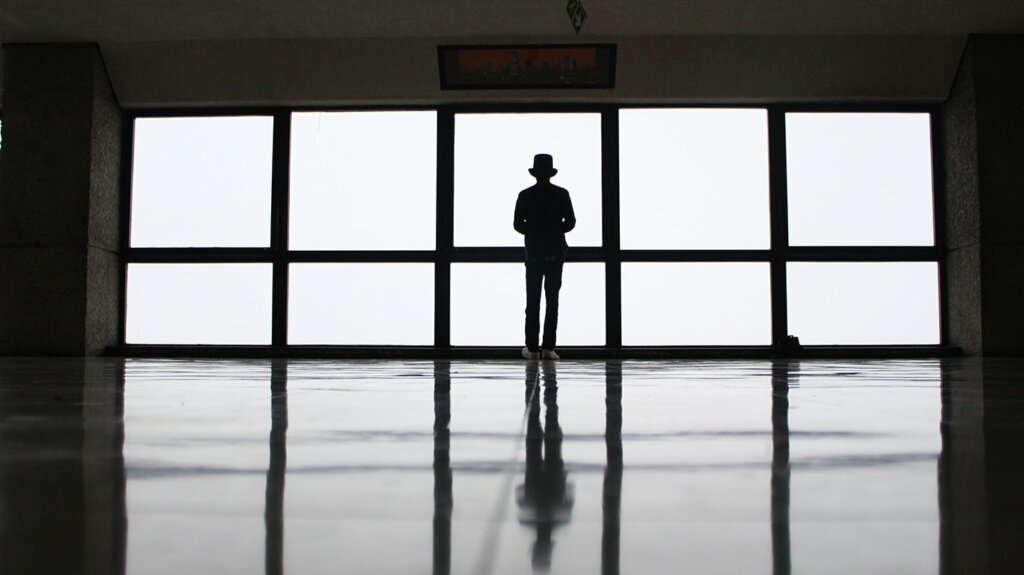
Photography is not just about capturing moments but also about embracing the present. Mindful photography is a practice that allows you to be fully present and connect with your surroundings while taking pictures. We’ve curated 5 helpful and free guides to get you started on your journey through mindful photography! 1. Zen Photography: The Art […]
Capturing the Action: Sports Photography for Beginners
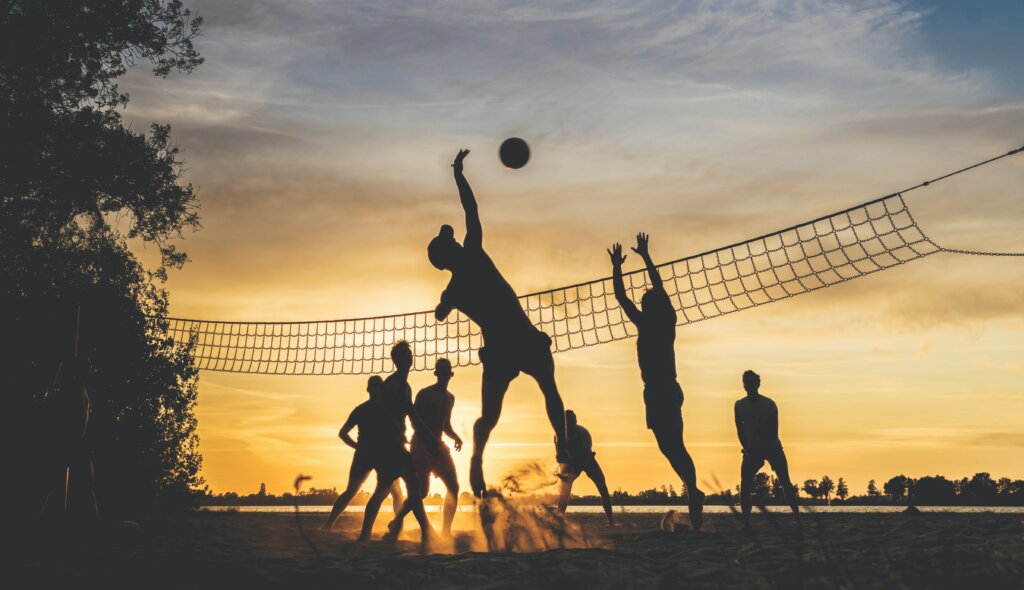
Sports photography is all about seizing the thrilling moments of action, whether on the field, court, or track. As a beginner photographer, you may find this genre both exciting and challenging. To help you dive into sports photography with confidence, this article will cover the fundamental tips on camera settings, gear and composing the best […]
Getting to Know Your Camera: 5 Free Guides to Camera Modes
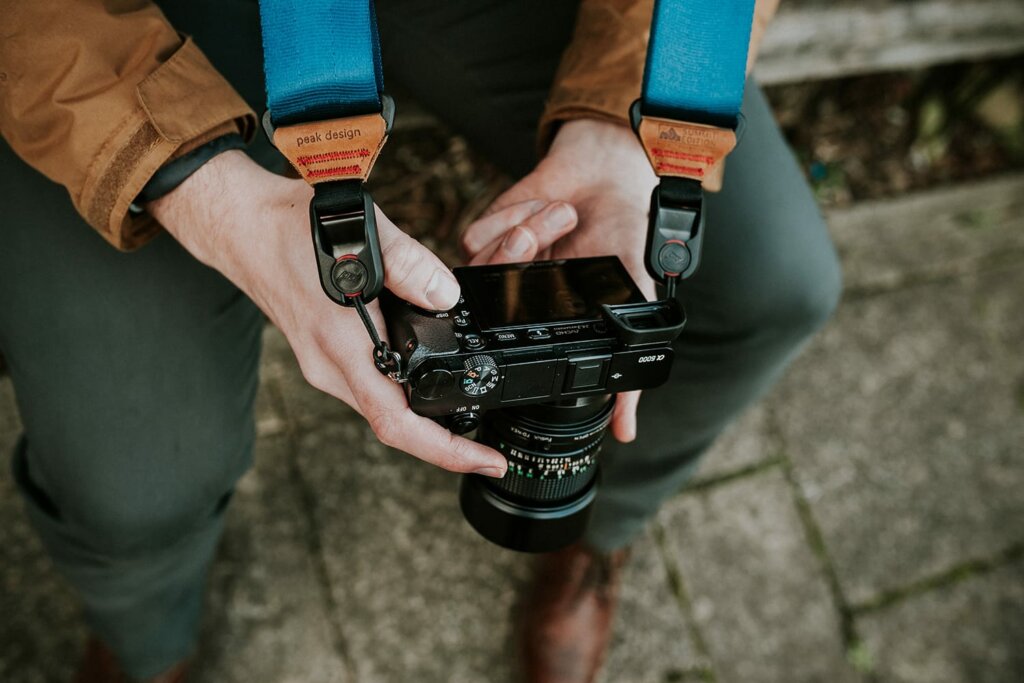
One of the key steps to taking your photography game to the next level is getting cozy with your camera’s modes. We’re talking about those intimidating settings such as Aperture, Shutter Speed, and Manual Mode. Today we’ve got you covered with five fantastic and free guides that will help you make sense of the many […]
The Magic of Storytelling in Photography

In the realm of photography, there is more to art than just capturing pictures. A photograph can be a powerful tool for storytelling, allowing you to convey emotions, moments, and stories in a single frame. Today we’ll explore the fascinating world of storytelling for photographers. We’ll break down the fundamentals of this art form and […]
4 Free Guides To Help Master Event Photography

If you’re stepping into the world of event photography, you’re in for an exciting journey. Events can vary from corporate events, weddings, or special occasions, and so mastering the art of event photography and being able to adapt to different types of events is essential. Today, we’re sharing four valuable and free guides to help […]
Tips and Techniques for Family Photography
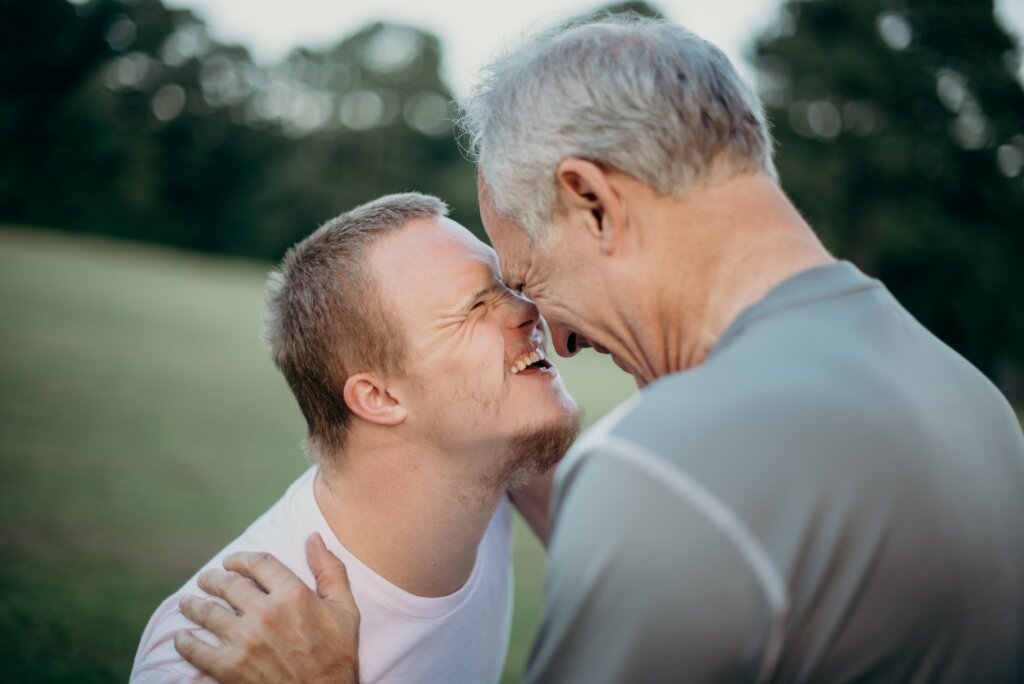
Family photography is a cherished art form that allows you to freeze moments of love, joy, and togetherness for generations to come. This genre requires more than just a camera – it’s about capturing genuine emotions, choosing the right gear, and understanding the nuances of lighting and location. These tips and techniques will provide you […]
Composition, Light and White Balance for Beginner Photographers
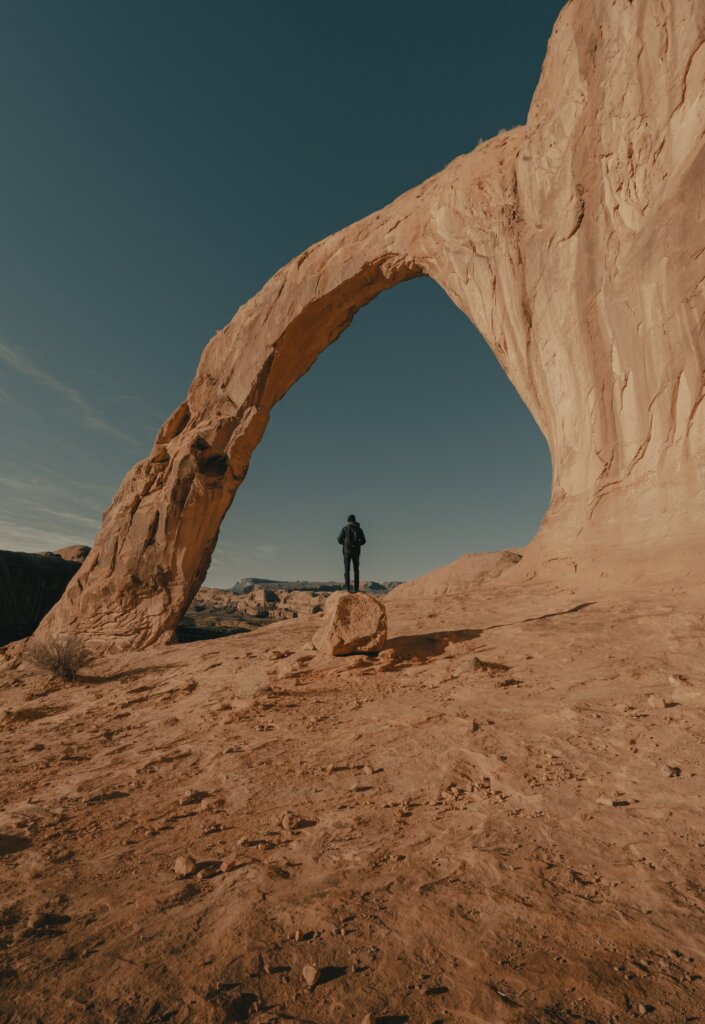
Whether you’re just starting or looking to refine your skills, understanding the basics is key to unlocking your creative potential. Today, we’ll delve into the art of composition, where the way you arrange elements within your frame can make or break your shot. We’ll also look at the magic of lighting, showing you how to […]
6 Free Guides To Learning Lightroom

Lightroom, renowned for its user-friendly interface compared to its Adobe sibling Photoshop, offers more than meets the eye. With these four invaluable free guides, you will discover the ins and outs of Adobe Lightroom and unlock your potential when it comes to photo editing. 1. What is Adobe Lightroom? Adobe Lightroom is a robust photo […]
Back to Basics: Camera Settings for Beginner Photographers
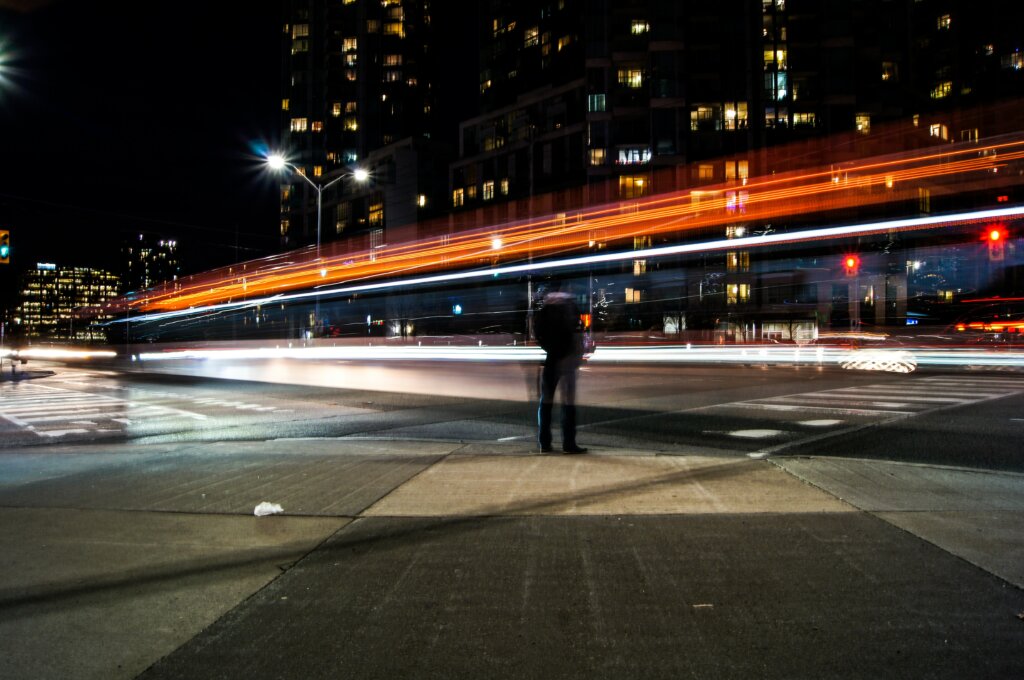
Are you a budding photographer who wants to capture the world around you with finesse? Well, you’ve come to the right place! Today, we’ll break down camera basics, providing you with essential knowledge and tips to kick-start your photography journey. Understanding Your Camera Lens: This glass piece at the front is crucial as it controls […]
4 Free Guides To Capturing The Magic of Winter
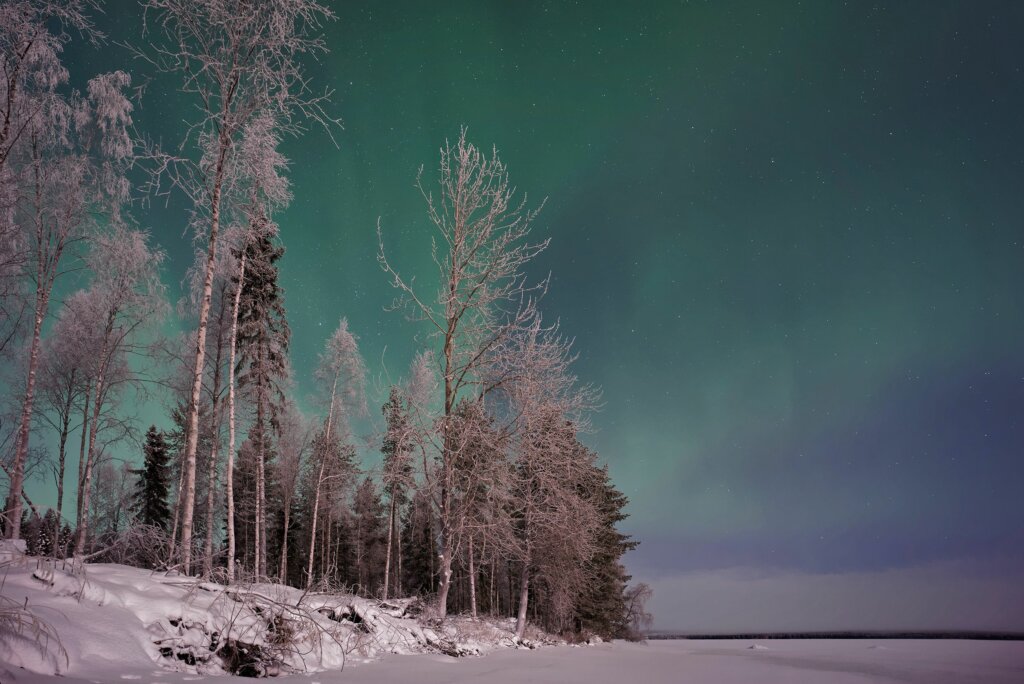
Winter is a captivating season for photography, offering a picturesque canvas of snow-covered landscapes, frosty forests, and unique lighting conditions. If you’re a photographer eager to capture the beauty of winter, we’ve put together 4 free guides to help you explore and take amazing winter photographs. 1. How To Create Magical Winter Landscapes Even if […]